Why do I Need an HTML Template?
Creating an HTML template is required before uploading HTML content.
When uploading content and selecting HTML as the format, you must choose a predefined template. The system uses this template to structure and display the content correctly. Without a template, HTML content cannot be properly formatted during upload.
Creating the template ahead of time ensures:
- Consistency across all HTML content
- A standardized layout and structure
- Easier bulk uploads using defined component names
By setting up templates in advance, you streamline the content creation process and maintain uniform formatting across a program.
Step 1: Log in to CMS as an Admin or Program Admin.
- Enter your credentials in the CMS login page

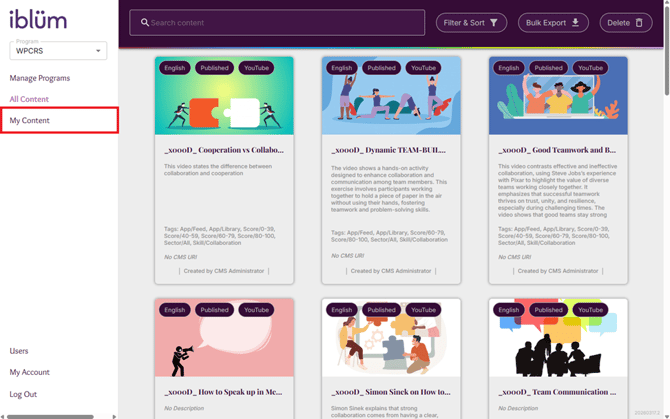
Step 2: Navigate to My Content.
- Select the second tab on the left navigation pane 'My Content'
Step 3: Click the Add (+) button.
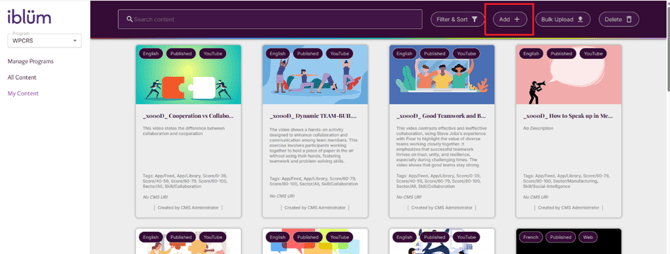
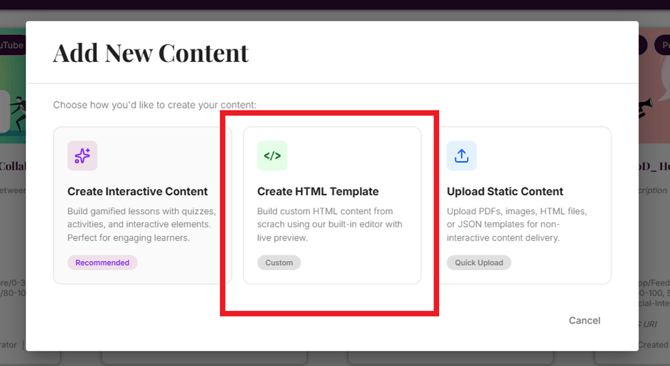
Step 4: Select Create HTML Template.
Step 5: Fill in the required fields in Metadata:
- Title - Provide a clear and appropriate title (e.g., Template for Microlearning Content).
- Program - Select the appropriate program.
- Course - Default is Unassigned if there are no courses
- ***Code - This will be used to reference when bulk uploading. If you leave this blank, you will not be able to use this template to bulk upload content. Ensure no spaces are used.
- Offline behaviour - Default is Online Only
- Language - Default is English
- Availability - Default is Always
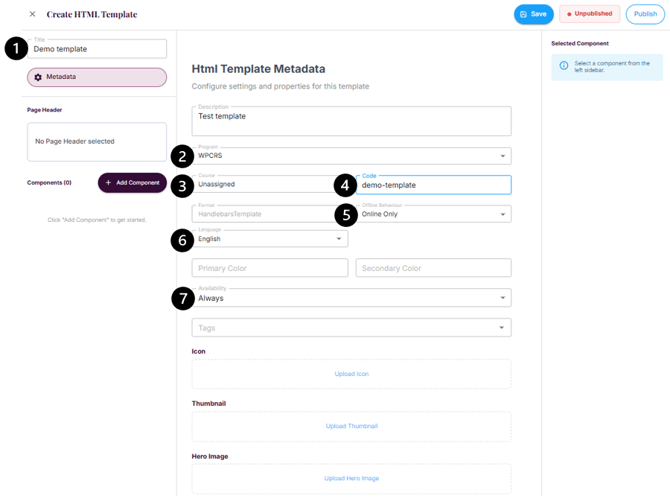
- You can leave the rest blank unless you plan on using the same tags and thumbnail for every content uploaded using this template.
- NOTE: By default, the color of the title and other components are black. If you want to change it you will need to enter the desired color you want in the Primary Color and Secondary Color fields with the hex value. i.e. White is #ffffff
Step 6: Use the left panel to build and arrange your HTML template layout.
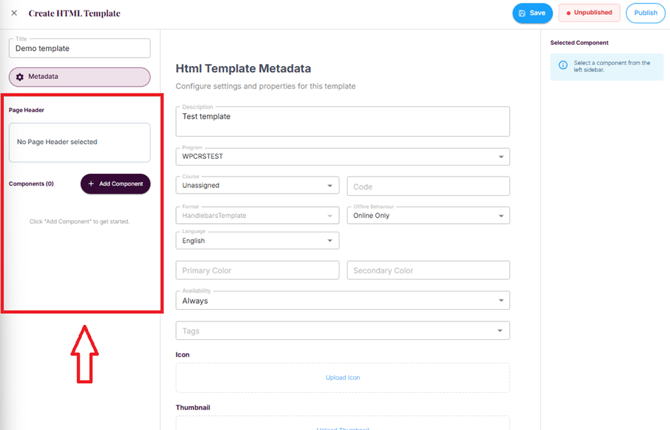
On the left side, you can:
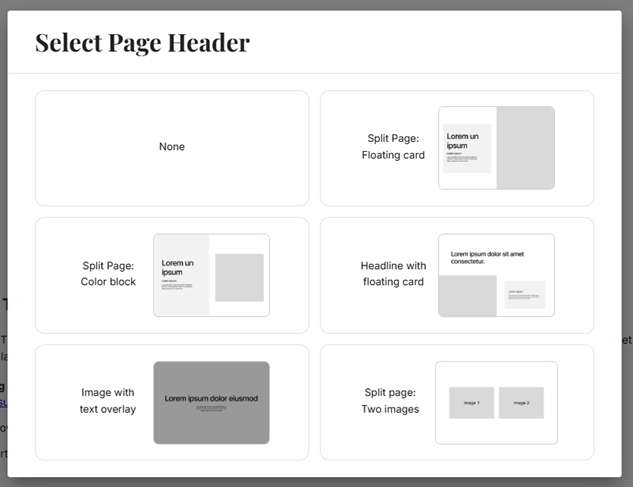
- Select a Page Header
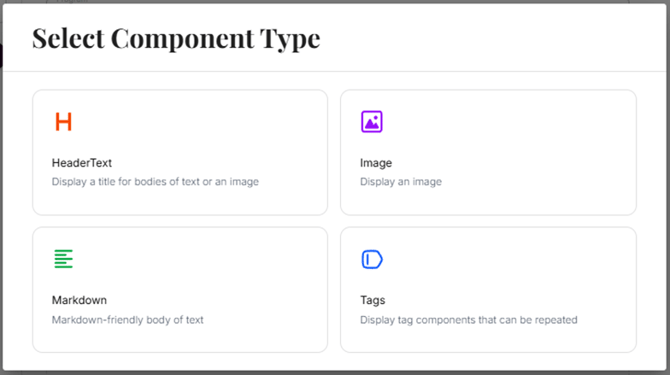
- Click + Add Component to add new components such as:
- Header Text
- Images
- Markdown Text (for body content and descriptions)
- Tags
- Add as many components as needed
Step 7: Use the middle preview panel to see how your template will appear.
- The center section displays a live preview of your HTML template
- As you add components (e.g., Header, Image, Markdown), you will see them reflected here in the order they are arranged.
- You can drag and reorder components to change the layout by holding on the dotted grid on the left side of the component
Before:
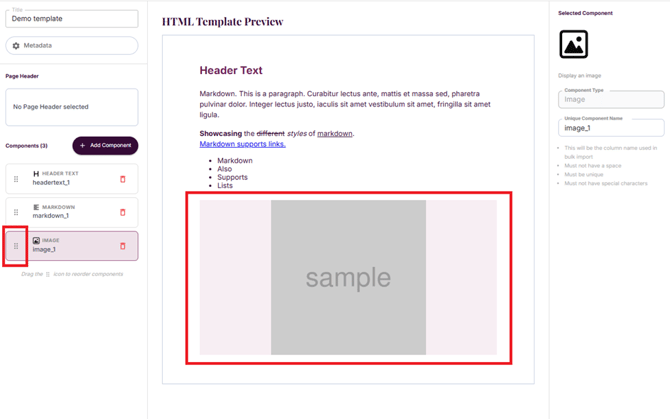
After:
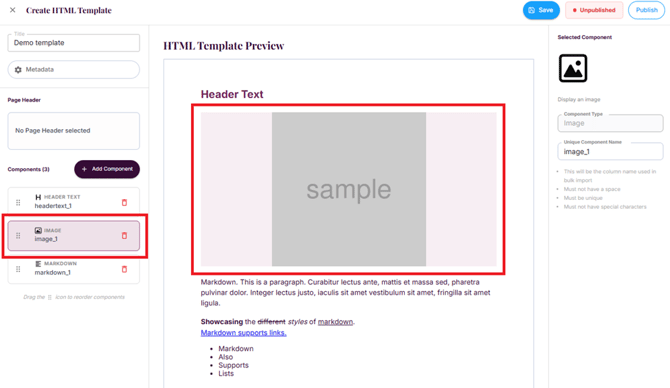
- Click on Metadata to return back to editing HTML template metadata such as description, program, etc.
- To return to HTML preview click on any of the components
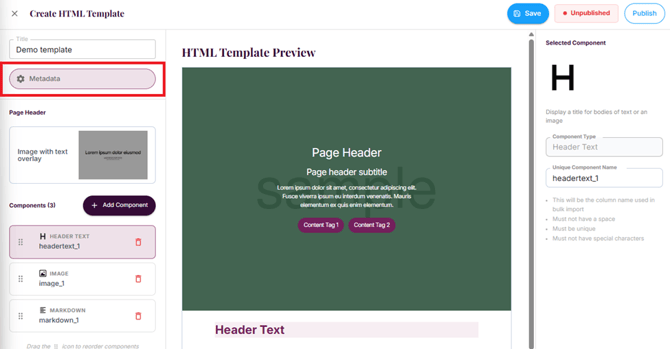
Step 8: Use the right panel to configure your selected component.
- When you click on a component from the left panel, its settings appear on the right side.
- Here you can set the Unique Component Name or leave the name as is
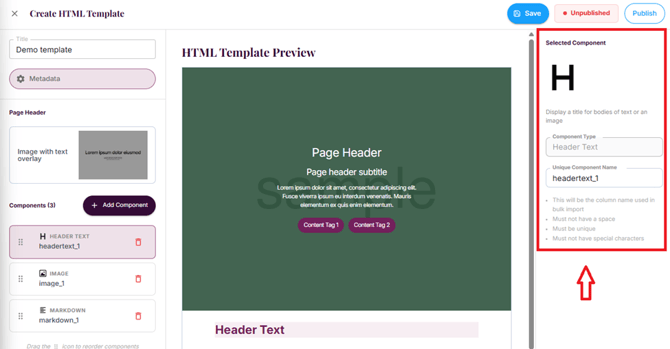
⚠️ The component name is important because:
- It will be used as the column name in bulk import
- It must not contain spaces
- It must be unique
- It must not contain special characters
Make sure to follow these naming rules to avoid bulk import errors.
Step 9: Review your template to ensure the layout and components are correct.
- Confirm all your changes are correct
- Hit Save on the top right corner of the page
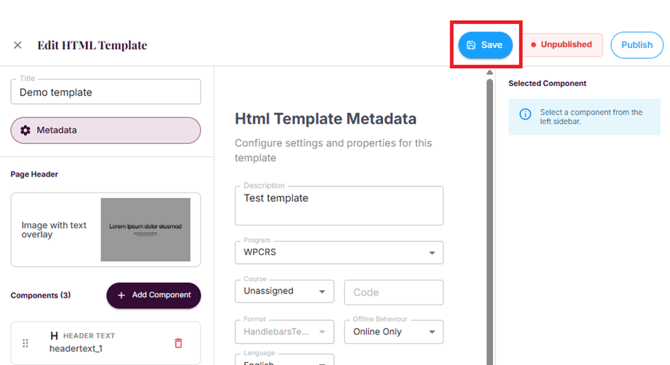
Step 10: Save your HTML template.
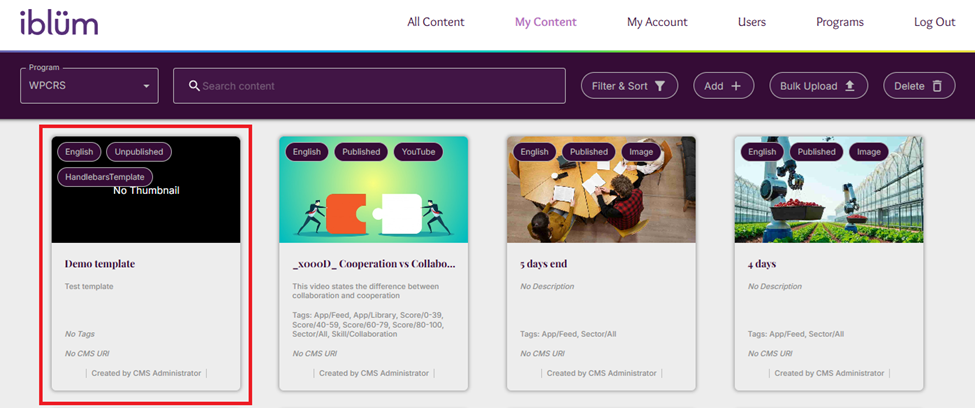
- Confirm that your template has been created by returning the CMS homepage
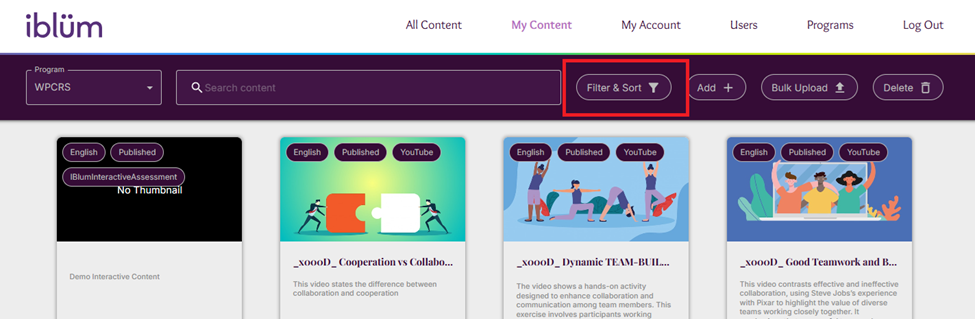
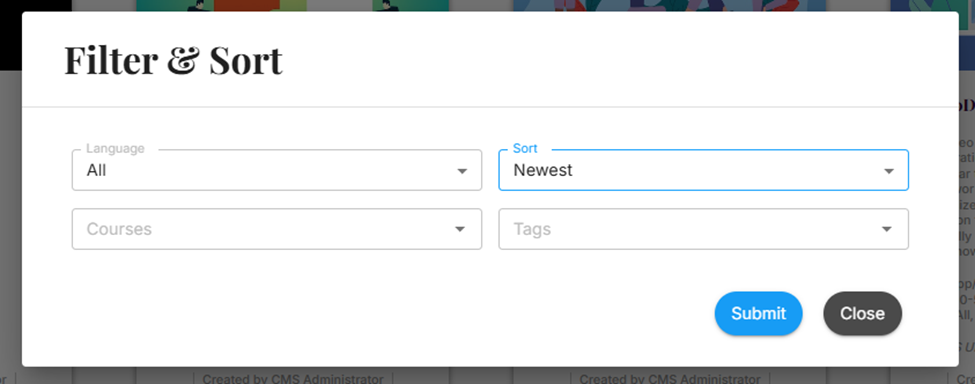
- Click on Filter & Sort and Sort by Newest