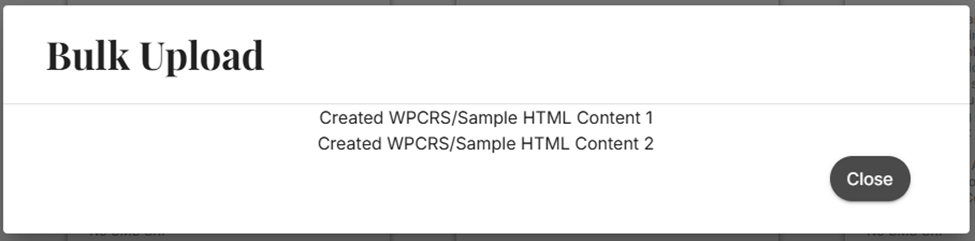
This process has two parts:
Before You Begin
- Create a folder to store everything in
- This will be where you save your bulk-upload spreadsheet and any other files you refer to, such as images, videos, pdfs, etc.
- Use this template to follow along: Bulk Upload Template.xlsx
Part 1: Preparing your bulk-upload spreadsheet
Step 1: Open this Bulk Upload Template.xlsx and create a copy
Step 2: Fill in each row and each column if needed
- Each row represents a piece of content
- Edit the Program column to ensure that the content is uploaded to the correct program
- Ensure that the required columns are filled in:
- Title
- Program
- Format
- Code
- Offline Behaviour
- Language
- Status
- Availability
- Relative – must have start dates
- URL/File Name
Example:
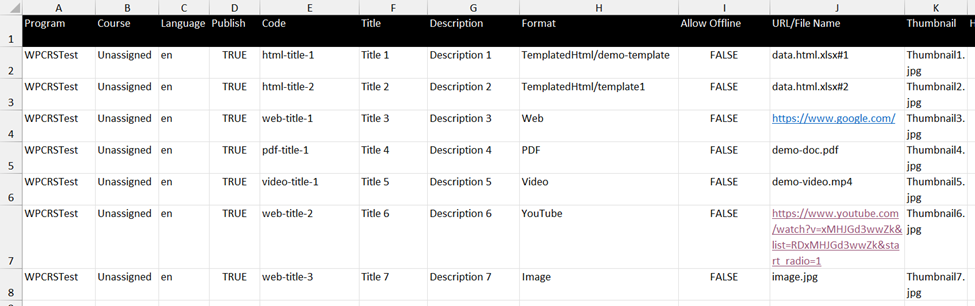
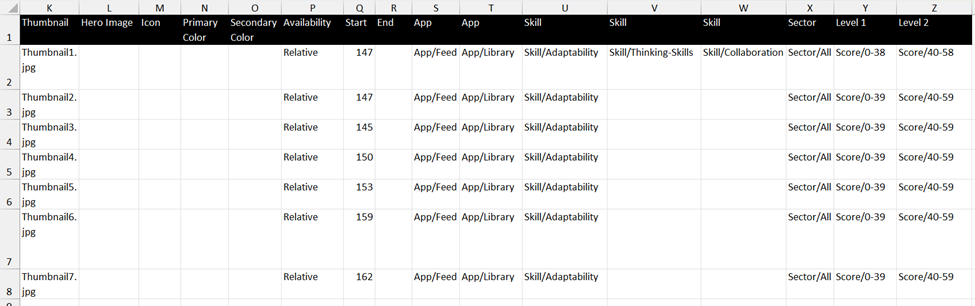
- The rest of the columns are optional, but it is important to fill them in correctly so that they show up where you want them to be
- App
- To show up in My Feed, under app column you input App/Feed
- For Library, input App/Library
- For both, there should be two app columns to put both App/Feed and App/Library
- Skill
- Add as many skill columns as needed for the content i.e.
- Level 1 & 2
- Sector
- Add as many sector columns as needed
- Thumbnail must match the saved image files in your folder with the extension type i.e. image1.jpg
- App
Step 3: Save your spreadsheet
- Once completed save your file
- Ensure all image files referenced in the spreadsheet are in the same folder as the spreadsheet
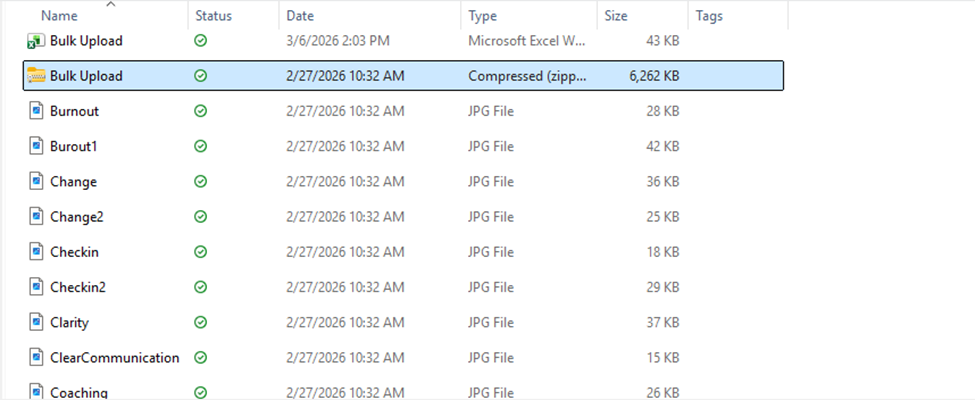
Step 4: Compress to ZIP file
- Select everything in the folder
- Right Click on the spreadsheet and hit compress to ZIP file
Part 2: Upload to CMS
Step 1: Log in to the CMS.

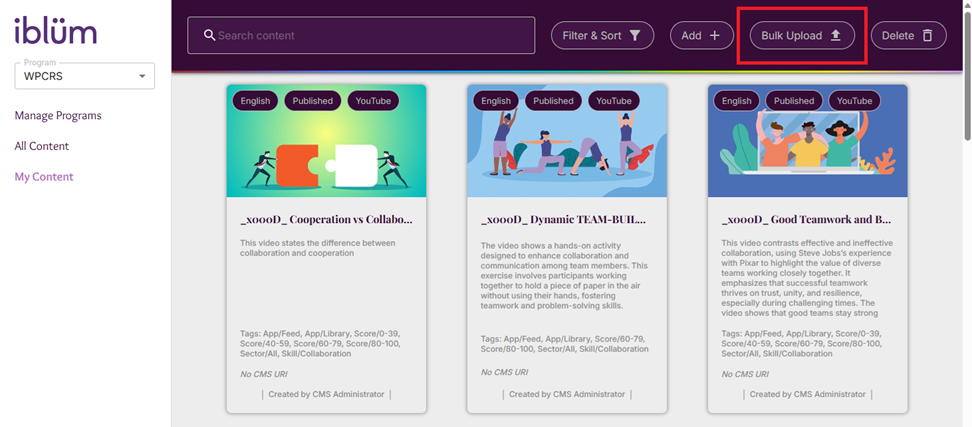
Step 2: Navigate to My Content → Bulk Upload.
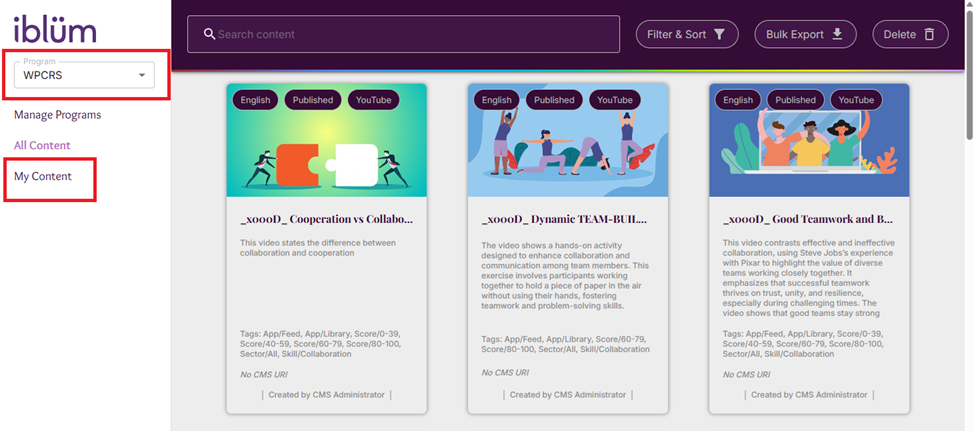
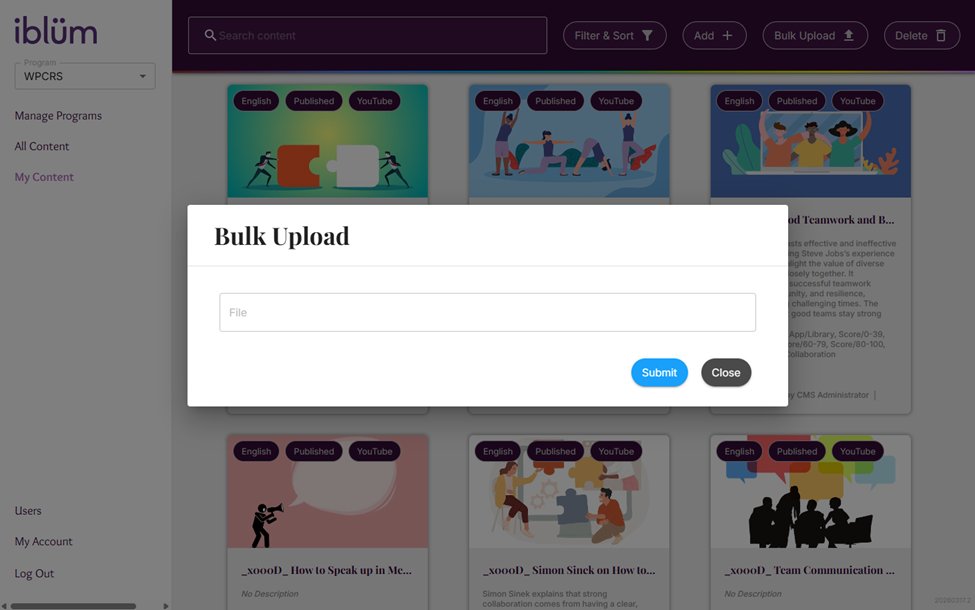
Step 3: Select and upload the zipped file.
Step 4: Wait for the confirmation message on the page indicating the upload status.