
This process has three parts:
Before You Begin
Before starting the bulk upload process, prepare two empty spreadsheets.
The first spreadsheet will contain the HTML content data, and the second spreadsheet will contain the CMS content information.
Create the following files:
- data.html: used to generate the HTML content data
- bulk-upload-content: used to upload the content into CMS
In the bulk-upload-content spreadsheet, paste the following columns in the first row:
Program,Course,Language,Publish,Code,Title,Description,Format,Allow Offline,URL/File Name,Thumbnail,Hero Image,Icon,Primary Color,Secondary Color,App,Availability,Start,End,Sector,Skill,Level 1,Level 2
OR use this template and clear everything but the columns: Bulk Upload Template.xlsx
Part 1: Copy the HTML Template Columns
Step 1: Log in to the CMS.

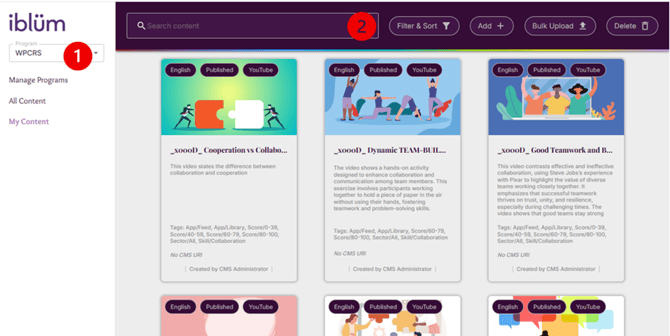
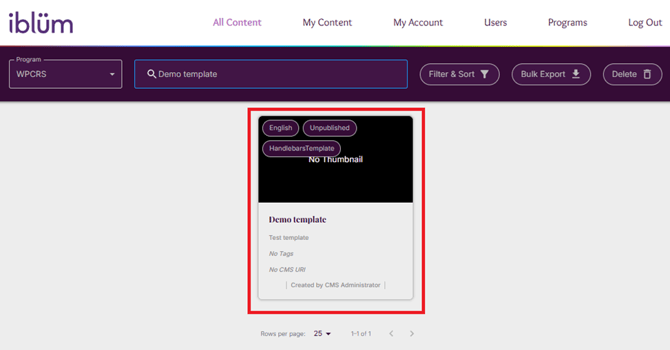
Step 2: Search for and select the HTML template you want to use.
- Ensure you are in the correct program
- Use the search bar to find the template by name
- Select the template once found
Step 3: Open the spreadsheet (Excel/CSV/Google Sheets) data.html or create one
- This spreadsheet will contain your html data
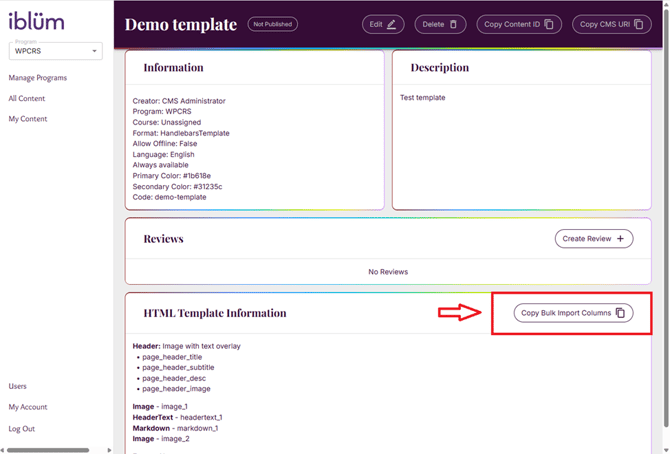
Step 4: Copy the bulk import columns and the code
- Each column represents a component in the html template
- Click on Copy Bulk Import Columns
- Keep this page open, you will need to copy another component from it
Step 5: Paste the copied columns into the first row of data.html spreadsheet.
- You should have something like this:

Step 6: Open bulk-upload-content spreadsheet or create a new spreadsheet with this template Bulk Upload Template.xlsx and delete everything but the columns.
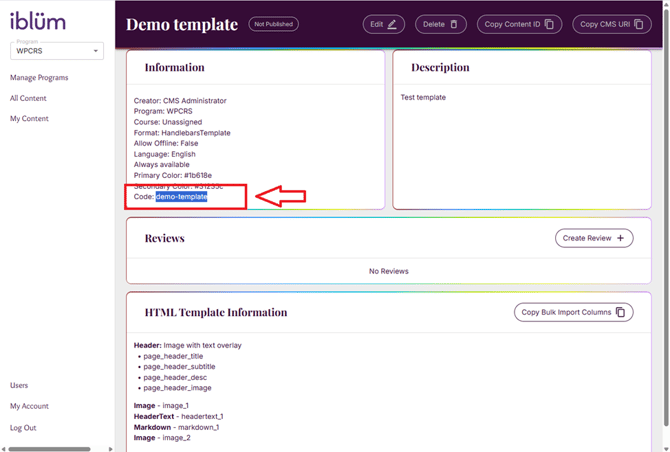
Step 7: Copy the code from the template
- Copy the contents from the field ‘Code’
- Paste it in the bulk-upload-content spreadsheet under the column ‘Format’
- Prepend it with TemplatedHtml/
- In this case, it would be TemplatedHtml/demo-template
- You should have something that looks like this in your bulk-upload-content spreadsheet:

Part 2: Prepare Your Spreadsheets
- Complete the data.html spreadsheet
- Each row represents one HTML page excluding the column titles.
- The columns represent the template components.
In this spreadsheet, you will need to edit each component for each html content.
Step 1: Open data.html and add a number column

Step 2: Edit each component for each html content
- Image columns refer to image files you have saved in the same folder as your spreadsheet
- Fill in the image name and extension type in this column. i.e. image1.jpg
- Markdown columns are text components that need to be written in markdown language
- In the end you would have something like this

Once complete, save this file.
- Create the Content Spreadsheet
- Open the bulk-upload-content spreadsheet
- Each row represents one piece of content to be uploaded into CMS. Fill in all required CMS fields.
- Ensure each content uses a templated html by filling in the Format column with: TemplatedHtml/template-code-name
- Under URL/File Name, link the html content by filling in the name of your html content spreadsheet. In this case it is data.html.xlsx
- Append the number column to refer to the specific row of html data i.e. data.html.xlsx#1 will use html content number 1
- Complete the other columns such as Program,Course,Language,Publish,Code,Title,Description,Allow Offline ,Thumbnail,Hero Image,Icon,Primary Color,Secondary Color,App,Availability,Start,End,Skill,Sector,Level 1,Level 2
- Once completed it should look like this:

Part 3: Upload to CMS
Step 1: Ensure both spreadsheets are saved in the same folder.
Step 2: Add any images referenced in your HTML data spreadsheet to the same folder.
Your folder should contain:
- HTML data spreadsheet
- Content spreadsheet
- All referenced image files from both spreadsheets
Step 3: Zip the entire folder.
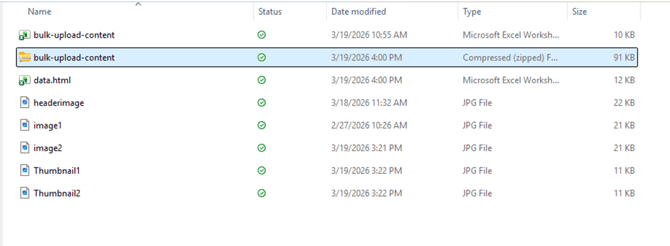
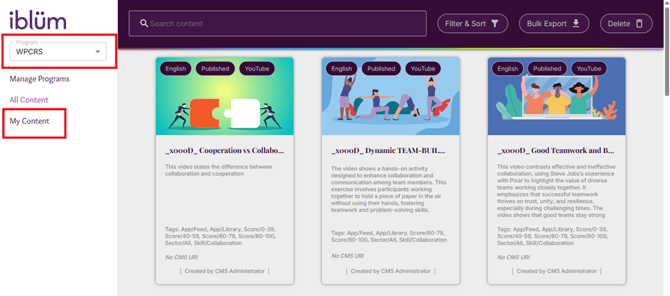
Step 4: Log in to CMS and ensure you are in the right program navigate to My Content → Bulk Upload.
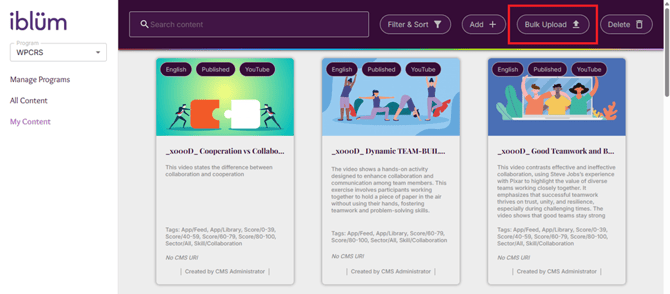
Step 5: Select and upload the zipped file.
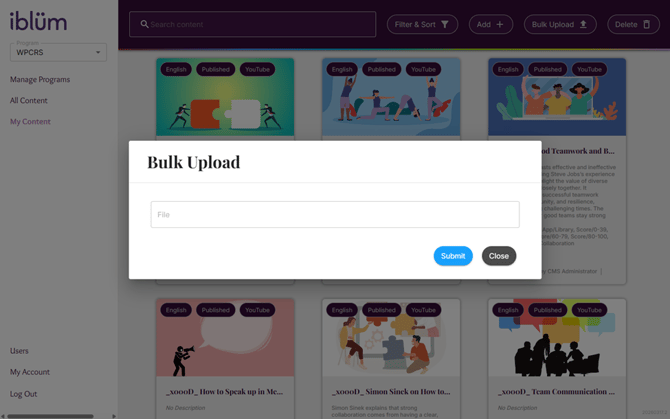
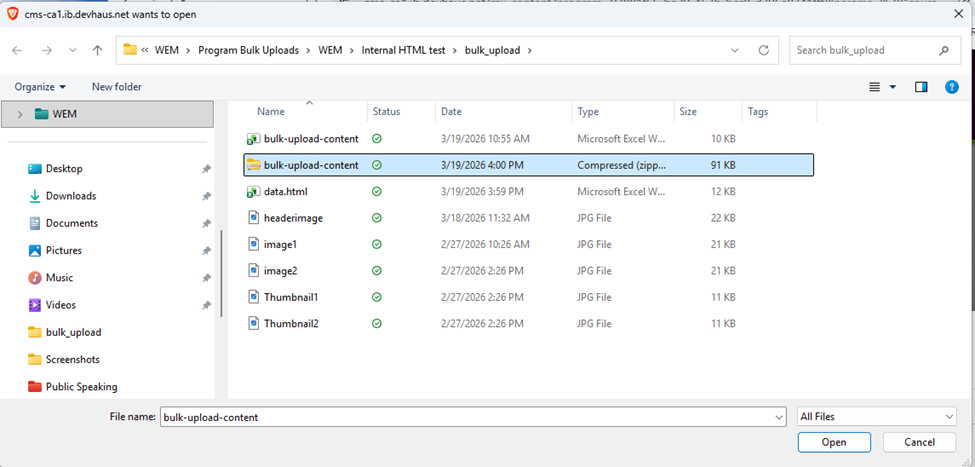
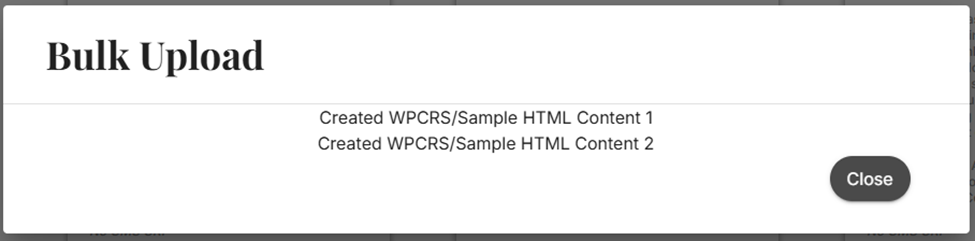
Step 6: Wait for the confirmation message on the page indicating the upload status.
Important Notes
- Image file names in your spreadsheet must exactly match the image files in the folder.
- The HTML template code must be formatted correctly as:
TemplatedHtml/TemplateCode
Both spreadsheets and images must be included in the same zipped folder.