![iblum_Icon_RGB.png]](https://help.iblum.co/hs-fs/hubfs/iblum_Icon_RGB.png?height=40&name=iblum_Icon_RGB.png)
Step 1: Access the page
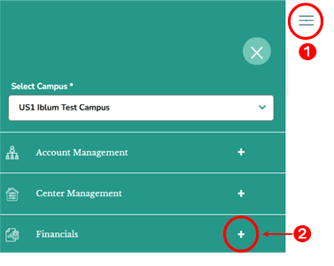
- First access the Financials section by clicking on the hamburger menu item. See image above.
- Next, click on the + button, to expand the Financials section.
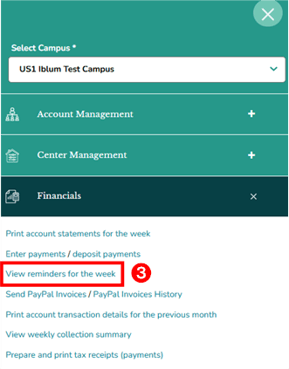
- In the Financials section, click the “View reminders for the week” link. This will redirect you to the Reminders page.
Step 2: Navigation

- Home Button (Top Left): Takes you back to the dashboard.
- Breadcrumb (San Marcos > Reminders): Shows your current location in the portal.
Step 3: Enter Payments page – Overview
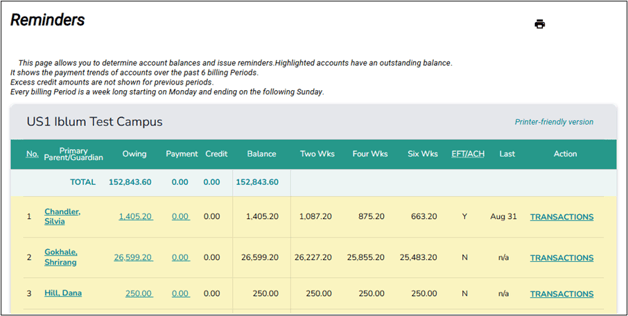
The Reminders page displays a consolidated list of all accounts for the selected center. The table includes balances, recent payment trends, and indicators showing whether the account is enrolled in EFT/ACH payments.
⚠️ Note:
- Highlighted rows show accounts with outstanding balances.
- Each billing period runs weekly, from Monday to Sunday.
Center Name - Displays the selected center (e.g., US1 Iblum Test Campus).
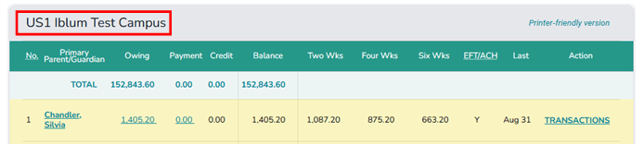
Table Columns - Below is an explanation of each column displayed in the account list:
- No. – Sequential listing of accounts.
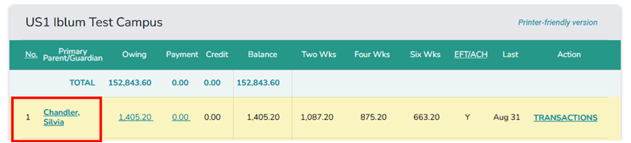
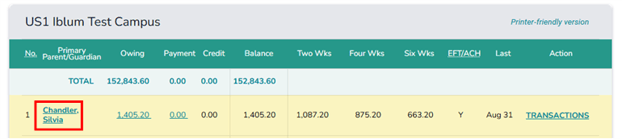
- Primary Parent/Guardian – Name of the account holder; clicking the name opens the account details. For additional information, refer to Step 4.
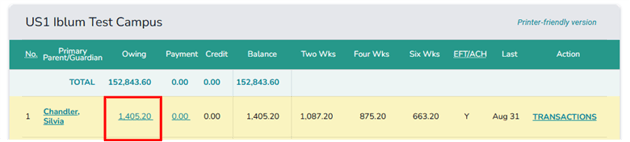
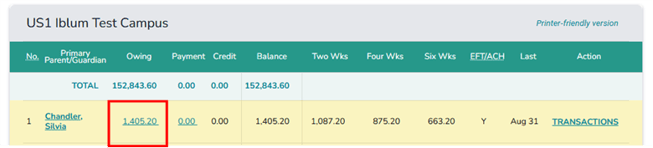
- Owing – Total outstanding amount. For additional information, refer to Step 4.
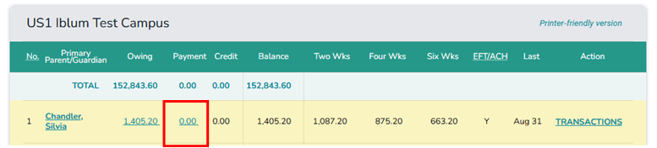
- Payment – Amount paid in the current billing period. For additional information, refer to Step 4.
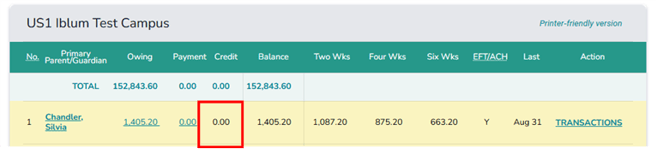
- Credit – Credit available for the account.
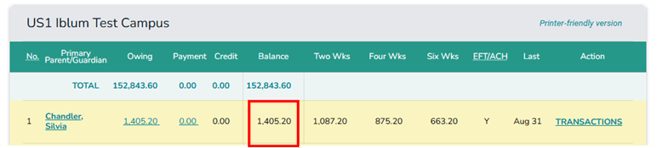
- Balance – Current account balance.
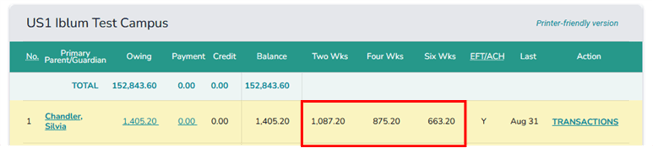
- Two Wks / Four Wks / Six Wks – Balance trends for the last 2, 4, and 6 weeks.
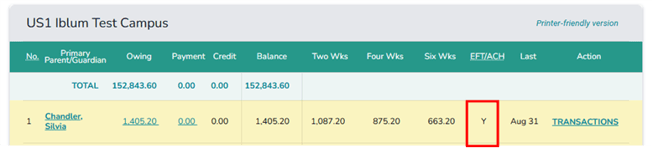
- EFT/ACH – Indicates whether the account is enrolled in automatic payments (Y = Yes, N = No).
- Last – Shows the date of the most recent transaction or payment.
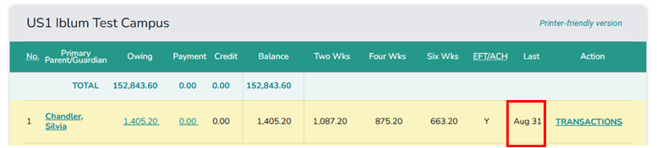
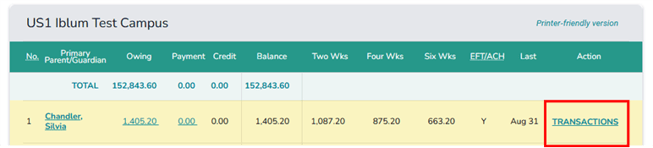
- Action – Provides a quick link to view account transactions. For additional information, refer to Step 4.
Step 4: Available Actions – Clickable links in the page
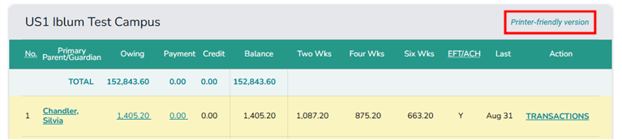
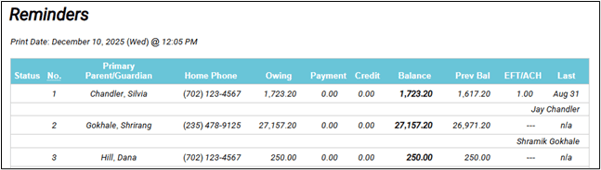
Printer-friendly version - Opens a simplified, print-ready version of the Reminders page. Displaying a clear list of families with outstanding fees. This option is ideal for internal reviews, center records, or summary of accounts requiring follow-up is needed.
👉 Example: Simplified, print-ready version of Reminders Page
Parent/Guardian Name - Opens the full Account Detail page. Allows review of charges, payments, adjustments, and transaction history. Click back to return to Reminders page.
👉 Example: Account Detail Page
For more information, refer to the Account Detail Page user guide.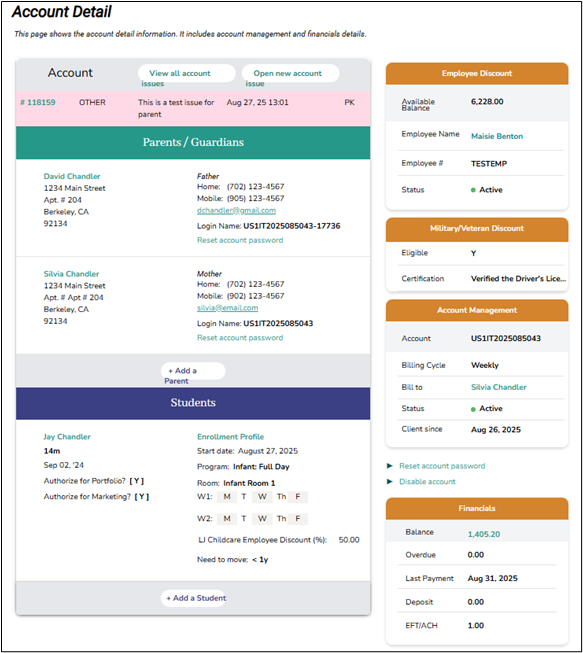
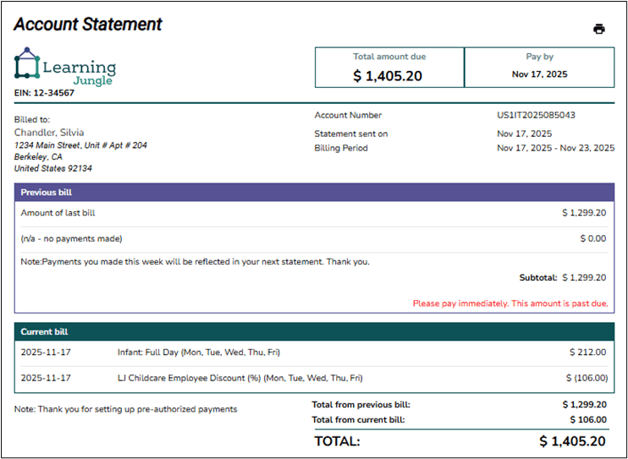
Owing Amount - Opens the most recent Account Statement for the selected account. Users can review the statement and print it if needed. Click back to return to Reminders page.
👉 Example: Account Statement
For more details, please refer to the Parent FAQ - How to Read the Account Statement?
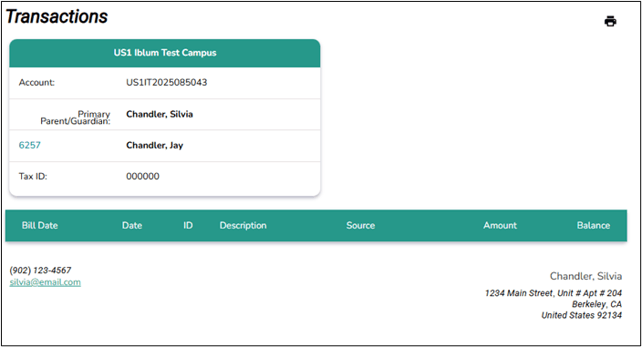
Payment Amount - Opens the transaction details for the selected account. Users can review recent payments and print the page if needed. Click back to return to Reminders page.
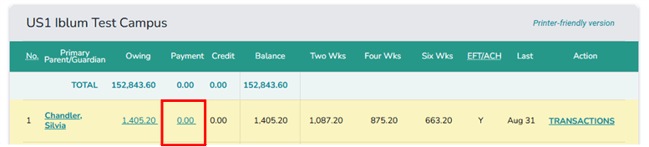
👉 Example: Transactions – Payment Detail Page.
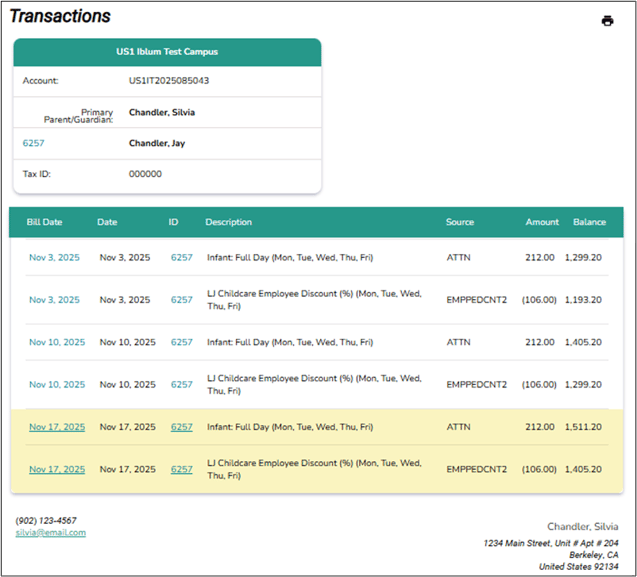
Transactions - Open the Transactions page for the selected account. This page allows you to get all the transactions related to this account providing a date range.
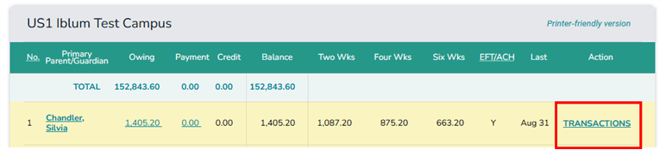
Allow users to: View detailed payment history, review charges and credits, confirm recent updates, and identify reasons for outstanding balances.
👉 Example: Get Transactions page
For more information, refer to the Account Detail Page – Financials Panel user guide. 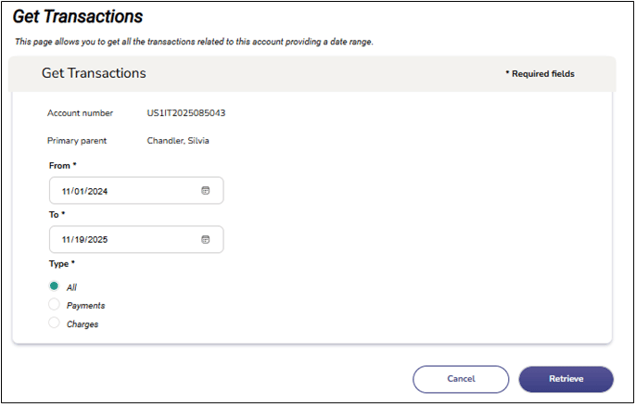
👉 Example: Transactions page
For more information, refer to the Account Detail Page – Financials Panel user guide.