![iblum_Icon_RGB.png]](https://help.iblum.co/hs-fs/hubfs/iblum_Icon_RGB.png?height=40&name=iblum_Icon_RGB.png)
Step 1: Access the page
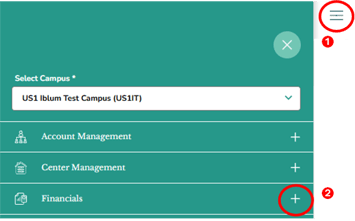
- Open the hamburger menu in the top-left corner of the portal.
- Confirm you are in the correct campus and expand Financials.
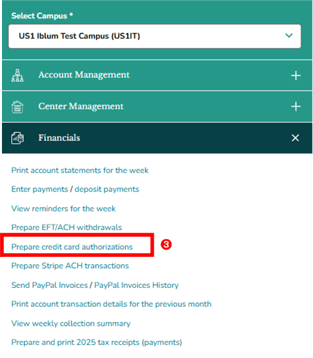
-
Click Prepare credit card authorizations.
Step 2 Set the date and review the list
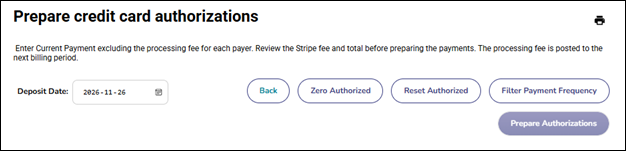
Check the Deposit Date and change it to the intended date if needed. Use Filter Payment Frequency to narrow the list to the payment frequencies you want to review.
- Payer. Identify the payer within each account and select the eligible payment rows you intend to authorize.
- Payment Amount. Use the displayed amount as a reference when reviewing the account.
- Authorized Amount. Enter the current payment for each selected payer before the processing fee.
- Fee and Total. Review the Stripe processing fee and total for each payer. The portal indicates that the processing fee posts to the next billing period.
- Zero Authorized. Use this control to set the working authorization amounts to zero.
- Reset Authorized. Use this control to return the working amounts to their starting values.
- Prepare Authorizations. Confirm the campus, Deposit Date, selected payers, authorized amounts, fees, and totals. When ready, choose Prepare Authorizations for the selected entries.
Step 3: Review and prepare the authorizations
If Prepare Authorizations is unavailable, check whether any eligible payments are selected. A disabled payer row cannot be selected or edited on this screen.
Use Back to leave the preparation page, or Print to print the displayed list.