![iblum_Icon_RGB.png]](https://help.iblum.co/hs-fs/hubfs/iblum_Icon_RGB.png?height=40&name=iblum_Icon_RGB.png)
⚠️ IMPORTANT: This feature is only available to users with a director-level or higher.
Step 1: Access the page
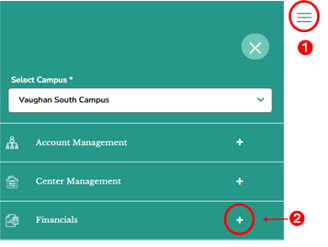
- First access the Financials section by clicking on the hamburger menu item. See image above.
- Next, click on the + button, to expand the Financials section.
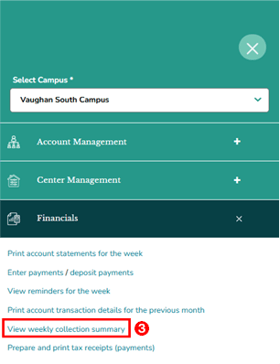
- In the Financials section, click the “View weekly collection summary” link. This will redirect you to the Collection Report page.
Step 2: Navigation

- Home Button (Top Left): Takes you back to the dashboard.
- Breadcrumb (Vaughan South Campus > Collection Report): Shows your current location in the portal.
Step 3: Collection Report page – Overview
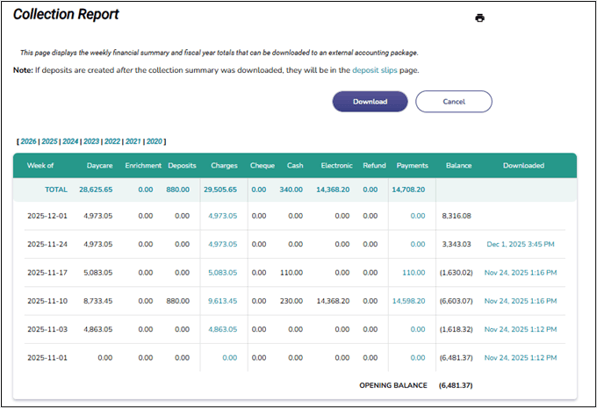
⚠️ Note: Always verify that there are no new deposits before downloading the summary. New deposits processed afterward will appear only under the Deposit Slips page.
When you open the Collection Report page, you will see:
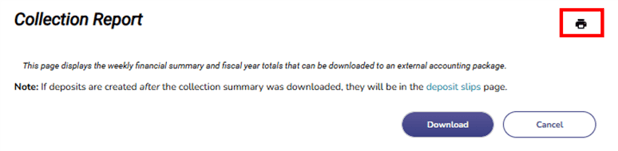
- Print Icon – Opens the browser print dialog to print the current summary. You may also choose Print to PDF if you prefer to save a digital copy before printing.
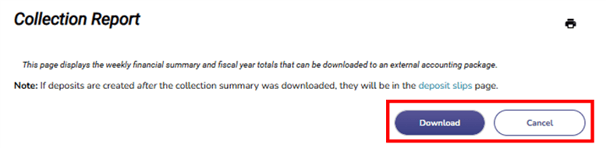
- Action Buttons - Download, which exports the weekly financial summary for the selected fiscal year for use in external accounting systems, and Cancel, which simply returns you to the main dashboard without performing any action.
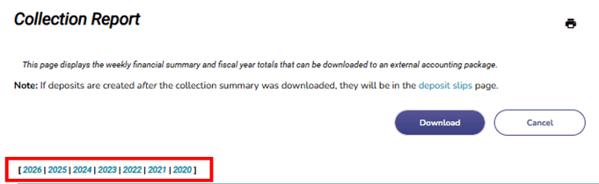
- Fiscal Year Selector - Located above the table, this allows you to toggle between fiscal years. Click any year to load that year’s weekly financial data.
- Report Table Details - The table displays weekly summarized financial activity. Each row represents a weekly reporting period.
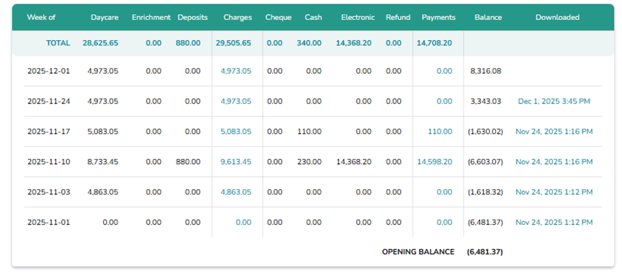
Week of - Start date of the reporting week.

Total row - Displays the total for each column below it.
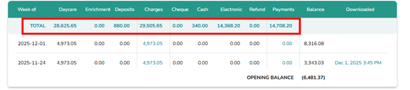
Daycare - Total daycare charges for the week.

Enrichment - Total enrichment-related charges.

Deposits - Amount deposited for that week.

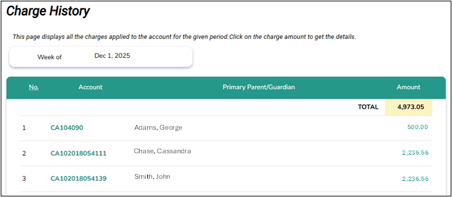
Charges - Total charges created for the week. This value is clickable and redirects you to the Charge History page, where you can view all charges applied to the account for that period. Click the charge amount to see the detailed breakdown.

👉 Example of Charge History page:
Cheque - Amount collected via cheque.

Cash - Amount collected in cash.

Electronic - Amount collected electronically (e.g., online payments).

Refund - Any refunds issued during the week.

Payments - Total payments recorded. This value is clickable and redirects you to the Center Payments Collected page, where you can view payments collected as of the given date that have not yet been deposited.

Balance - Running weekly balance.

Downloaded - Shows timestamp when the report for that week was downloaded.
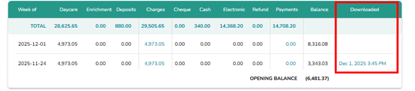
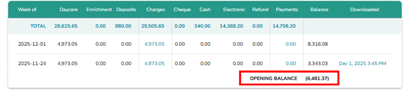
Opening Balance Row - Located at the bottom of the table, showing the beginning balance for the selected fiscal year.