![iblum_Icon_RGB.png]](https://help.iblum.co/hs-fs/hubfs/iblum_Icon_RGB.png?height=40&name=iblum_Icon_RGB.png)
Step 1: Access the page
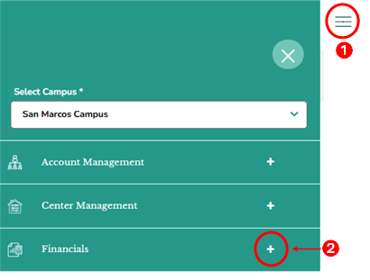
- First access the Financials section by clicking on the hamburger menu item. See image above.
- Next, click on the + button, to expand the Financials section.
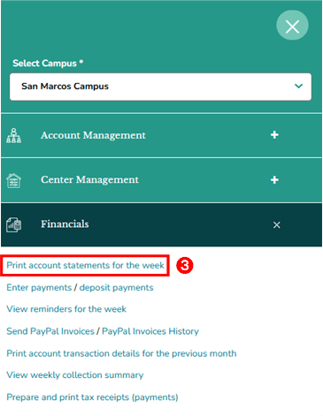
- In the Financials section, click the “Print account statements for the week” link. This will redirect you to the Print Account Statements page.
Step 3: Print Account Statements – Overview
This page displays a list of accounts with key information, including Account Number, Primary Parent Name, Balance forward or Charge difference (if applicable), Print Checkbox, and Action (View).

Account Highlights
Certain accounts appear with a yellow highlight. An account is highlighted if it meets any of the following conditions:
- It has an overdue balance
- It contains adjustments for the current billing period
- It shows a different charge amount compared to the previous billing period
Step 4: Available Actions
A. View Account Details - Click the Account Number to open the detailed account record.

This page displays the account details, history, and billing information. You may review billing details within the Financials panels, including the associated links for further information and action.
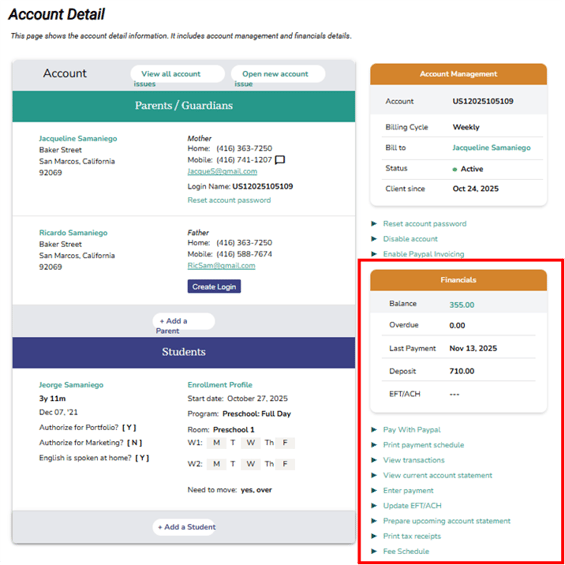
⚠️ Note: To learn more, see the Account Detail Page – Financials Panel user guide for complete details.
B. View Account Statement - Click the VIEW button in the Action column to preview the account statement for the selected account.
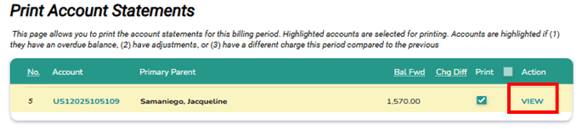
On this page, you can review the billing information for the current period. Click Back to return to the previous page.

C. Select Accounts for Printing - Under the Print column, select the checkbox next to each account you want to include in the print batch. You may choose individual accounts or use the checkbox in the Print column header to select or deselect ALL available statements.
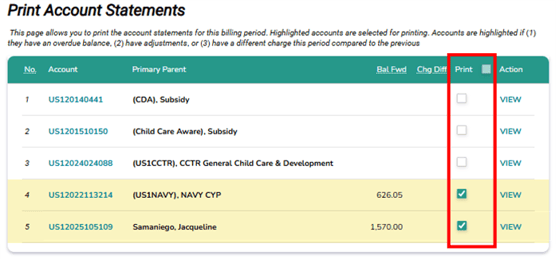
D. Continue or Cancel - Click Continue to proceed to the Account Statement Print Summary page, where you can finalize and print the selected statements. Click Cancel to return to the main dashboard without making changes.

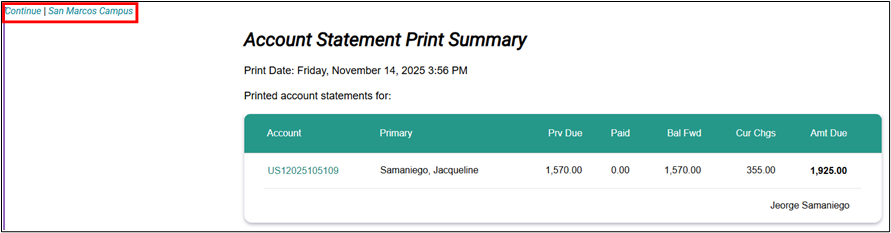
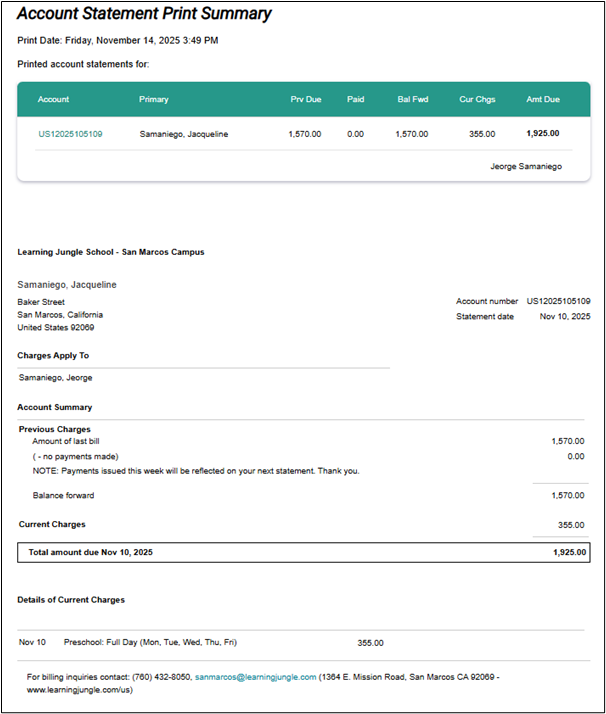
Step 4: Account Statement Print Summary page - Overview
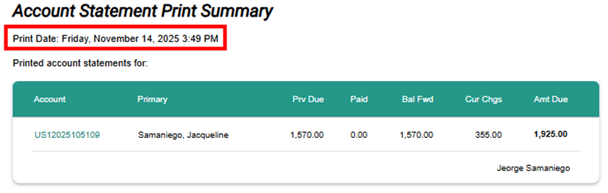
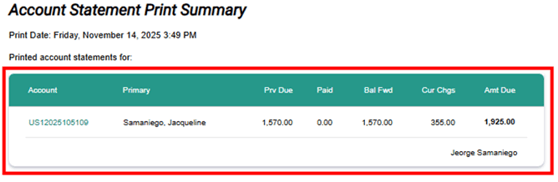
Print Date & Time
Located at the top of the page, this shows when the statement was generated. Help confirm the statement’s timeliness and ensure you are viewing the latest billing summary.
Printed Account Statements For
Shows a table summarizing key billing information at a glance.
- Account - Unique account ID.
- Primary -Name of the primary account holder.
- Prev Due - Amount carried over from the previous billing period.
- Paid - Any payments made toward the previous balance.
- Bal Fwd - Remaining balance forwarded.
- Cur Chgs - New charges added for the current period.
- Amt Due - Total amount owed.
⚠️ Note:
- If Paid = 0.00, it means no payment has been recorded yet.
- The Amt Due is bolded for quick visibility.
- Name of student(s) can be seen just below the Amount due.
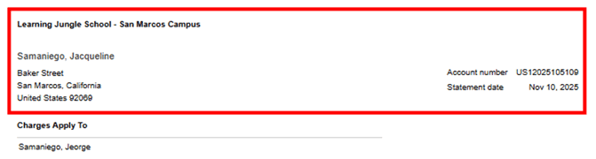
School and Account Holder Information
- School Information and location (e.g., San Marcos Campus).
- Account Holder (Primary Parent) Details: name and address
- Found on the right side: Account Number & Statement Date
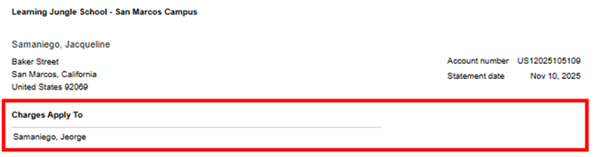
- Charges Apply To: Shows the name of the child or student the charges are attributed to. Useful when multiple dependents are linked to one billing account.
- Account Summary - Breakdown of all charges and balances.
Previous Charges
-
- Amount of last bill – What was owed previously.
- (- no payments made) – Indicates payment received within the last cycle.
- Additional note may appear, “Payments issued this week will be reflected on your next statement.”
Balance Forward - Remaining amount carried to the current statement.
Current Charges - Shows the new charges added in the current billing cycle.
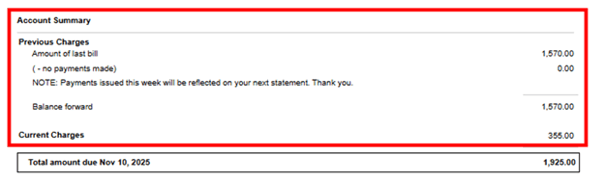
- Total Amount Due - Combined total of all previous balances + current charges.

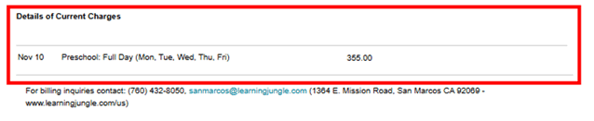
Details of Current Charges
A line-by-line breakdown of what the current charges include. Helps parents verify what they are being billed for.
Billing Support Information
At the bottom of the page, you will find the phone number, email address, school address, and website link for additional reference. Contact the center if any amount appears incorrect or if payments were made but not reflected.

Step 5: Print
Since the Account Statement Print Summary page does not include a print button, use the web browser’s print function:
💻On Windows:
- Press Ctrl + P on your keyboard, or
- Open your browser menu (⋯) > Print.
🍎On Mac:
- Press Command + P, or
- Use the browser menu > Print.
⚙️Adjust Settings:
- Select Destination Printer (physical printer or “Save as PDF”).
- Choose Layout (Portrait recommended).
- Set Pages to include the full report.
🖨️Click Print to generate the attendance report.
✅ Tip: Use 💾Save as PDF if you want to keep a digital copy before printing.
To print an additional statement, click the “Continue” button located at the top-left corner of the page to return to the Print Account Statements page. Alternatively, click the center name (e.g., San Marcos Campus) to navigate back to the dashboard.