![iblum_Icon_RGB.png]](https://help.iblum.co/hs-fs/hubfs/iblum_Icon_RGB.png?height=40&name=iblum_Icon_RGB.png)
⚠️ IMPORTANT:
This feature is only available to users with a director-level or higher.
Current taxable year can also be seen in the title, e.g. Prepare and print 2024 tax receipts (payments).
Step 1: Access the page
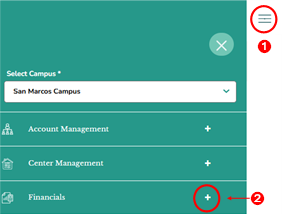
- First access the Financials section by clicking on the hamburger menu item. See image above.
- Next, click on the + button, to expand the Financials section.
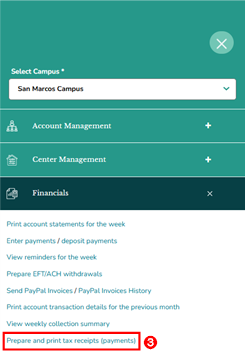
- In the Financials section, click the “Prepare and print tax receipts (payment)” link. This will redirect you to the Prepare Tax Receipts page.
Step 2: Navigation

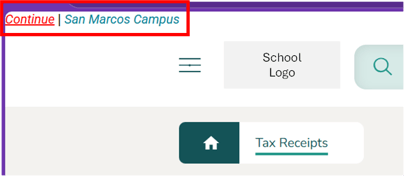
- Home Button (Top Left): Takes you back to the dashboard.
- Breadcrumb (San Marcos > Prepare 2024 Tax Receipts): Shows your current location in the portal.
Step 3: Preparing the Tax Receipts
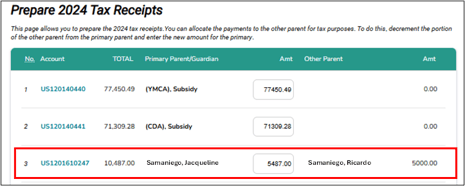
When you open the Prepare 2024 Tax Receipts page, you will see a list of family accounts for the selected center.
⚠️ Note: “2024” refers to the latest applicable tax year or tax reporting period.
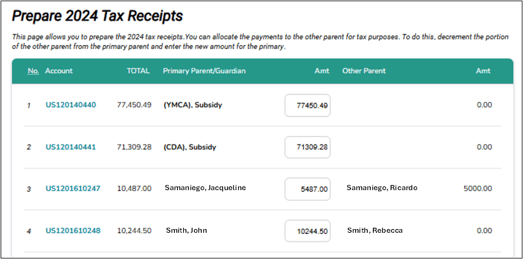
For each account, the following information is displayed:
- No. – Sequential listing number for reference.
- Account – Clickable link to the family’s account number for additional details.
- TOTAL – Total eligible amount paid during the tax year.
- Primary Parent/Guardian – Name of the primary parent associated with the account.
- Amt – Editable field showing the amount currently allocated to the primary parent.
- Other Parent – Name of the additional parent or guardian (if applicable).
- Amt – Automatically recalculates the remaining amount after the Primary Parent/Guardian’s allocation is edited.
Users can adjust the distribution by decreasing the amount for the primary parent or guardian. This ensures accurate reporting for tax receipts.
👉 Example: Account with payment allocation
TOTAL Paid: $10,487.00
Primary Parent Allocation: $5,487.00
Other Parent Allocation: $5,000 (auto-calculated)
Action Buttons
Click Cancel to discard any changes made on the page and returns you to the previous screen without saving modifications. Click Continue to save all allocation changes and proceed to the next page.

Step 4: Printing the Tax Receipts
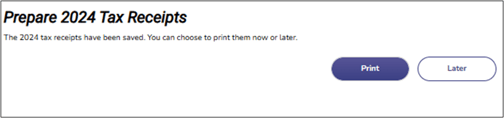
A. Choose when to Print
On this page, you can choose to print the tax receipts immediately or return later to complete the printing. Selecting Print takes you to the Print 2024 Tax Receipts page.
B. Select Receipts to Print
This page allows you to selectively print the tax receipts. Highlighted accounts indicate which receipts are selected for printing. Accounts are automatically highlighted if they have no overdue balance. Clicking Continue opens the tax receipt for printing.
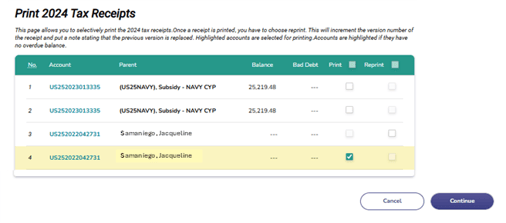
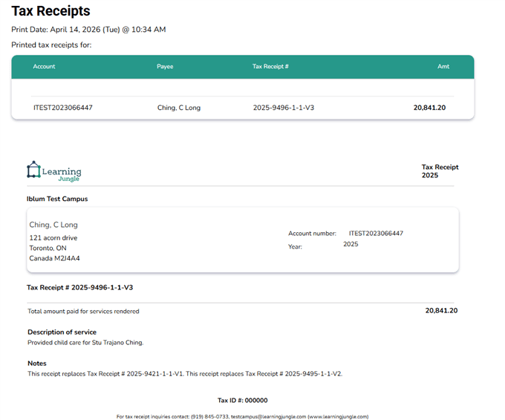
⚠️ Note: Reprinting Receipts - Once a receipt is printed, the system requires you to choose Reprint for any future copies. Reprinting creates a new version of the receipt and adds a note indicating that the previous version has been replaced.
C. Print Tax Receipts using your browser
Since the Tax Receipt page does not provide a dedicated print button, use your browser’s built-in print options to print the receipt.
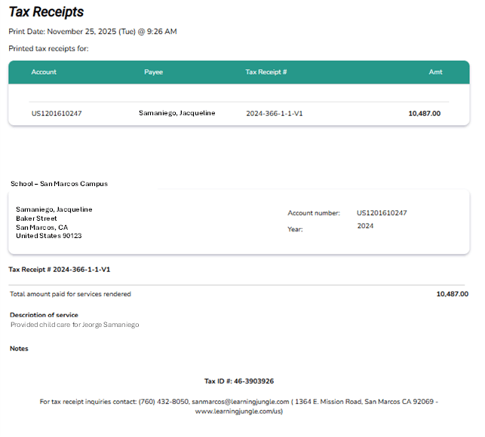
👉 Example: 2025 Tax Receipt with school logo
💻On Windows:
- Press Ctrl + P on your keyboard, or
- Open your browser menu (⋯) > Print.
🍎On Mac:
- Press Command + P, or
- Use the browser menu > Print.
⚙️Adjust Settings:
- Select Destination Printer (physical printer or “Save as PDF”).
- Choose Layout (Portrait recommended).
- Set Pages to include the full report.
🖨️Click Print to generate the attendance report.
✅ Tip: Use 💾Save as PDF if you want to keep a digital copy before printing.
D. Return to the Previous Page
After printing, click Continue at the top-left corner to return to the Print Tax Receipts page, or click the center name to go back to the main dashboard.