![iblum_Icon_RGB.png]](https://help.iblum.co/hs-fs/hubfs/iblum_Icon_RGB.png?height=40&name=iblum_Icon_RGB.png)
Step 1: Access the page
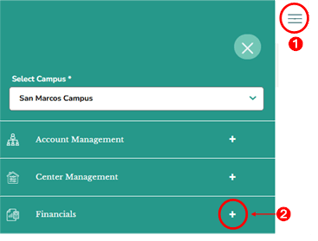
- First access the Financials section by clicking on the hamburger menu item. See image above.
- Next, click on the + button, to expand the Financials section.
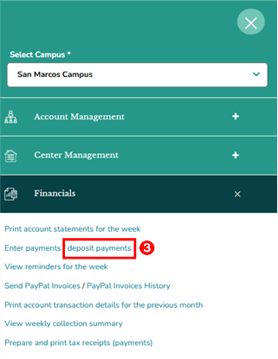
- In the Financials section, click the “deposit payments” link. This will redirect you to the Deposit Slips page.
Step 2: Navigation

- Home Button (Top Left): Takes you back to the dashboard.
- Breadcrumb (San Marcos > Deposit Slips): Shows your current location in the portal.
Step 3: Deposit Slips – Overview
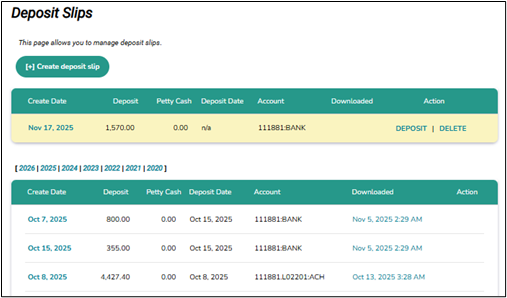
⚠️ Note: Newly created slips appear in the highlighted section at the top of the list.
Deposit Slip Table
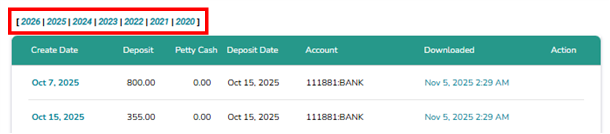
The main table displays deposit slips organized by Create Date, with details for each record:
- Create Date - Date the deposit slip was created in the system.

- Deposit - Total deposit amount entered.

- Petty Cash - Petty cash amount (if applicable).

- Deposit Date - The date the deposit was actually made in the bank.

- Account - Bank account details where the deposit was applied.

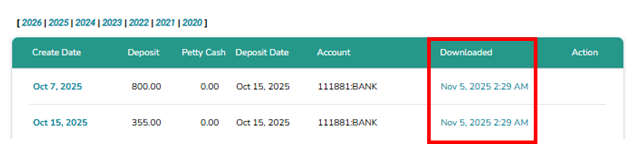
- Downloaded - Timestamp of when the deposit slip was downloaded.
- Action - Available actions such as Deposit or Delete. For additional information, refer to Step 4.

- Other years can be viewed by selecting the year tabs (2026, 2025, 2024, etc.).
Step 4: How to Manage Deposit Slips
A. Create Deposit Slip - Link located at the top of the page (+ Create deposit slip) used to create a new deposit slip.
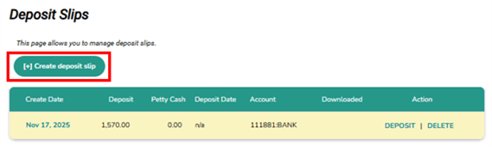
The Create Deposit Slip page allows users to review and select payments that need to be deposited into a designated bank account. This page consolidates different payment types (cash, cheque, EFT) and enables the user to generate an accurate deposit slip for bank submission and internal records.
Summary Panel: 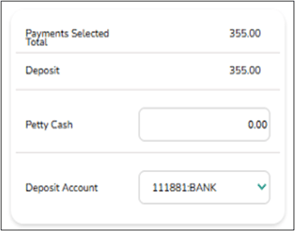
- Payments Selected Total - Displays the sum of all payments checked (e.g., 355.00).
- Deposit - Reflects the same value as the Payments Selected Total unless petty cash is used.
- Petty Cash - Allows users to move part of a cash deposit to petty cash if permitted. Petty cash is only an option if you are depositing amounts collected in CASH and allows you to assign an amount to be retained as cash, instead of having it deposited. The total petty cash amount cannot exceed the total cash amount being deposited.
- Deposit Account - Select the account where the deposit will be made (e.g., 111881:BANK). Note: The deposit account is an internal account code that is configurable on a per organization basis.
Payments Table - This table lists all available payments grouped by payment type. Each category may contain individual payment rows.
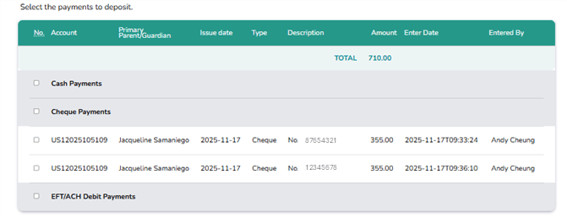
- No. - Checkbox to select the payment to include in the deposit slip.
- Account - Displays the payer’s unique account or reference number.
- Primary Parent/Guardian - Name of the payer or account holder.
- Issue Date - Date the payment was issued (e.g., 2025-11-17).
- Type - Payment method (e.g., Cheque).
- Description - Additional identifying details (e.g., cheque number).
- Amount - Payment amount (e.g., 355.00).
- Enter Date - Timestamp indicating when the payment was recorded.
- Entered By - Staff member who logged the payment (e.g., Andy Cheung).
⚠️ Note: At the top of the table, a TOTAL line shows the sum of all available payments (e.g., 710.00).
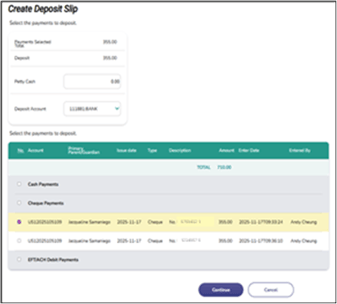 Process:
- Select Payments to Deposit - Check the box beside each payment you want to include. Selected payments are highlighted (e.g., yellow row).
- Verify Totals - The Payments Selected Total will automatically update.
- Adjust Petty Cash (Optional) - Enter an amount here if part of the selected deposit is being moved to petty cash.
- Click Continue to proceed to the deposit slip creation or click Cancel to exits the page without saving changes.
B. Deposit the payment – The newly created deposit slip will appear in the highlighted section at the top of the list. To open a specific deposit slip, click DEPOSIT under the Action column.
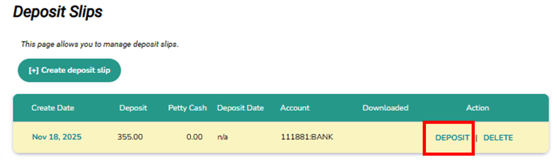
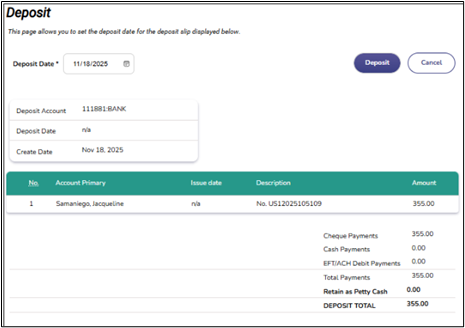 Process:
- Review the details of the deposit slip.
- If needed, you can update the Deposit Date using the calendar picker.
- Click Deposit to proceed or click Cancel to return to the previous page.
C. Delete - Removes the deposit slip from the system. Used when a deposit slip was created in error or is no longer required.
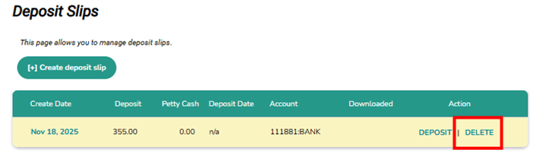
⚠️ Note: Only available if the slip has not yet been finalized or processed.