![iblum_Icon_RGB.png]](https://help.iblum.co/hs-fs/hubfs/iblum_Icon_RGB.png?height=40&name=iblum_Icon_RGB.png)
Step 1: Access the page
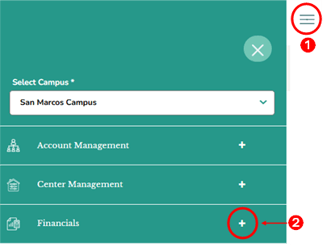
- First access the Financials section by clicking on the hamburger menu item. See image above.
- Next, click on the + button, to expand the Financials section.

- In the Financials section, click the “Enter payments” link. This will redirect you to the Enter Payments page.
Step 2: Navigation

- Home Button (Top Left): Takes you back to the dashboard.
- Breadcrumb (San Marcos > Enter Payments): Shows your current location in the portal.
Step 3: Enter Payments page - Overview
The page displays a table where users can enter one or more payments.
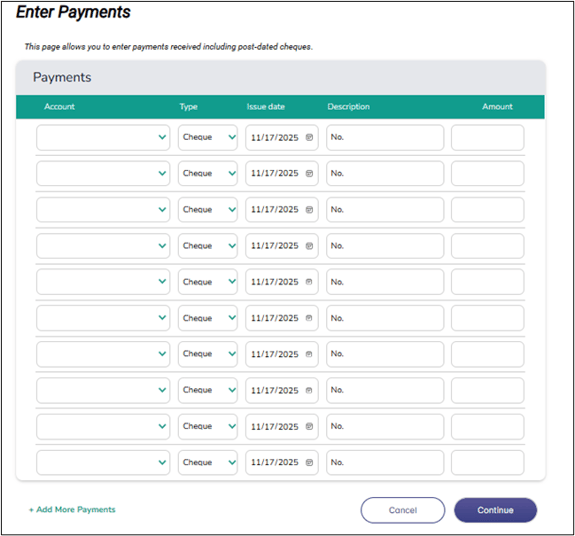
Each row represents a single payment entry and contains the following fields:
- Account - Select the account or primary parent associated with the payment from the drop-down menu.

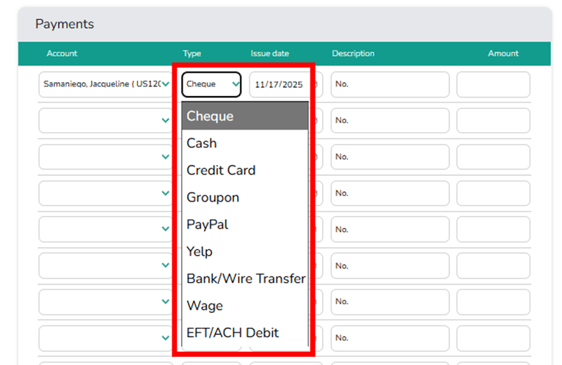
- Type - Choose the payment method (e.g., Cheque).
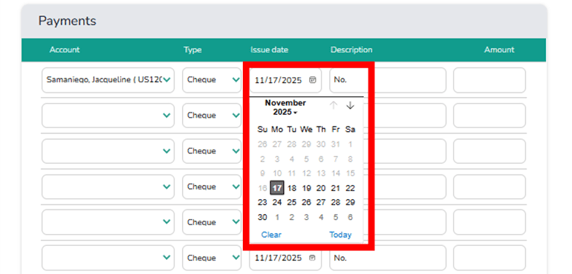
- Issue Date - Enter the cheque or payment issue date using the calendar picker.
- Description - Add notes or identifiers related to the payment (e.g., Cheque or OR #).

- Amount - Enter the amount received.

Add More Payments
Users may add multiple payments in one session by completing additional rows. A link labeled “+ Add More Payments” is available at the bottom of the table to insert additional payment rows as needed.

Action Buttons
Click Continue to save all entered payment information. Click Cancel to discard the entries and return to the previous page without saving.

⚠️ Note: For instructions on entering payments through the Account Detail Page, refer to the Account Detail Page – Financials Panel user guide for complete details.