![iblum_Icon_RGB.png]](https://help.iblum.co/hs-fs/hubfs/iblum_Icon_RGB.png?height=40&name=iblum_Icon_RGB.png)
1. Navigate to the Timesheet Management Page
- Log in to the LJ Portal.
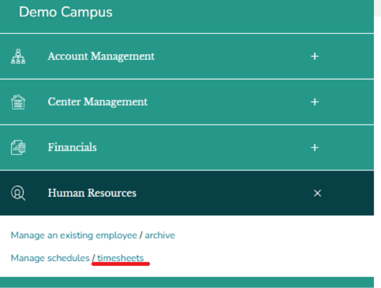
- Click the hamburger menu (☰) to open the Human Resources menu.
- Select timesheets. You will be navigated to the Timesheets page.
2. Create a New Timesheet
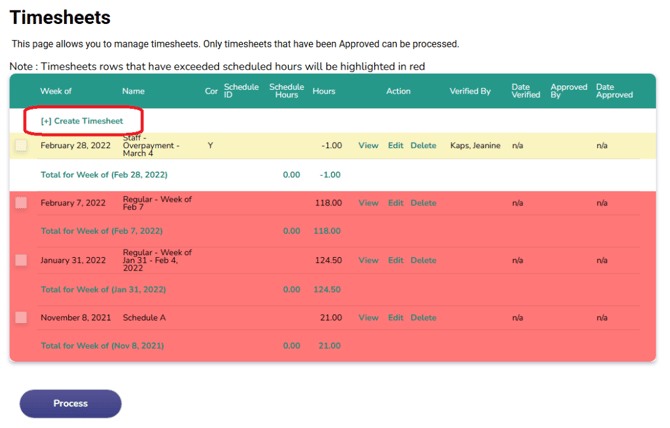
- Click on [+] Create Timesheet link. You will be navigated to the Create Timesheet form.
3. Fill in Timesheet Details
Complete the required information:
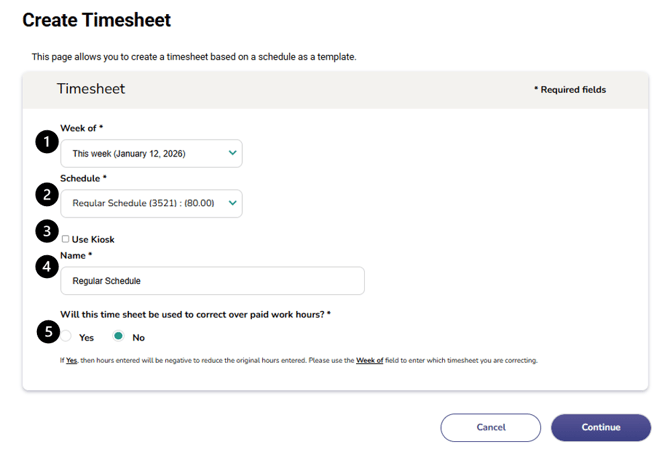
- Week Of* – Select the week the timesheet applies to.
- Schedule* – Choose the schedule that will serve as the template for this timesheet.
- Use Kiosk – Select if you want to use kiosk data to pre-fill entries that you can later confirm and add to the timesheet. If you do not select this, you can still use kiosk data, but it will not prefill the timesheet. Instead, you will select the start and end times recorded from the kiosk app.
- Name* – Enter a name for the timesheet.
- Correct Overpaid Hours – Select Yes or No.
- If set to Yes, the hours entered will be recorded as negative values to reduce overpaid hours.
- If set to No (default), the timesheet will record regular hours.
Click Continue to proceed.
4. Edit/Verify Timesheet
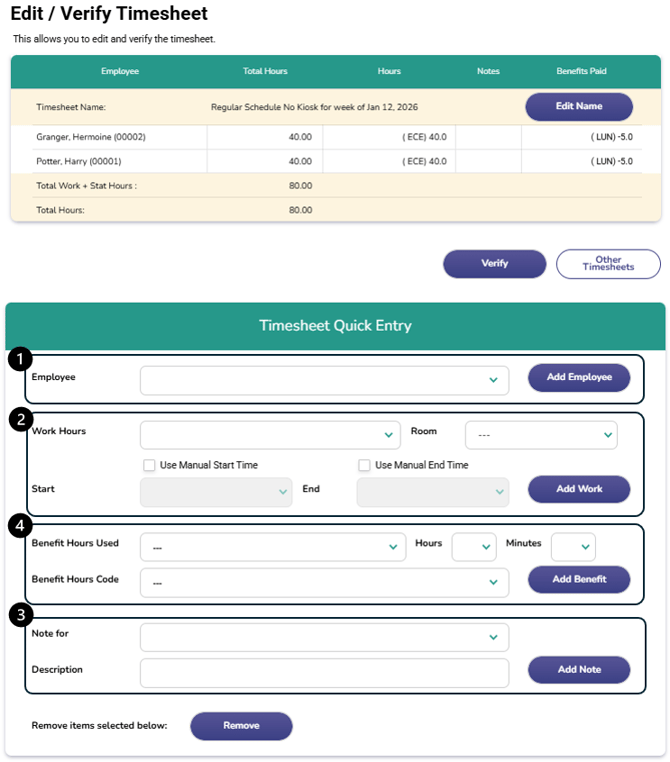
You will be navigated to the Edit/Verify Timesheet page. Here you can add:
- Employees
- Work hours with kiosk or manual entry. Alternatively you can submit pre-filled work activities.
- Benefit hours
- Notes
Submitting Pre-Filled Work Activities
To submit pre-filled work activities, you must have valid kiosk entries on the app. Entries in purple are valid entries that can be submitted.
- Check items that you want to submit i.e. a single entry or everything in the cell.
- Select Submit Pre-filled Work Activities Button
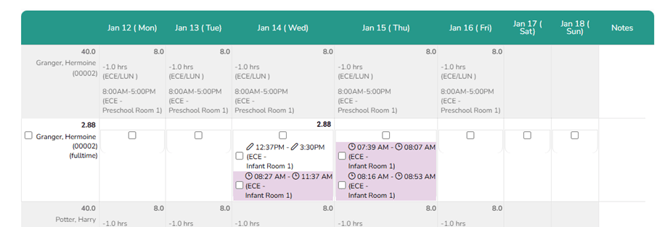
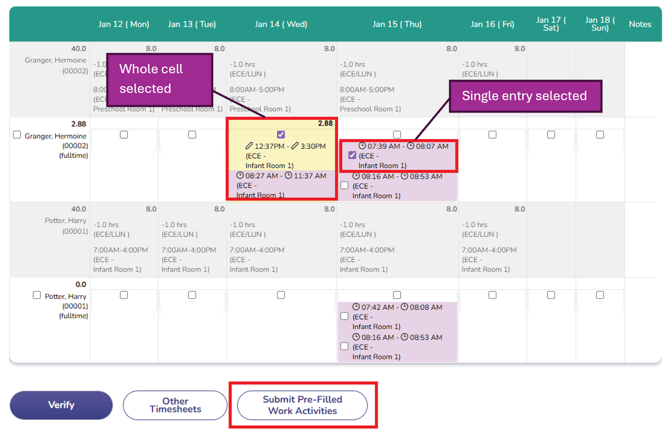
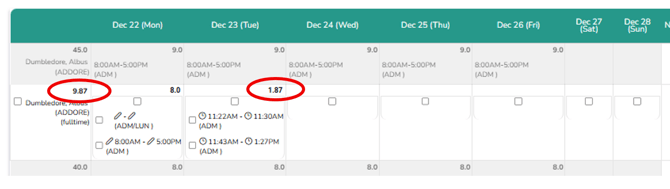
Once submitted, you will be able to see the hours added on top of each cell and as well on top of the employee’s name totaled:

Timekeeping Attestation Procedure (PA and MB flags)
When an employee answers No to the Punch Accuracy and/or Meal Periods attestation questions on the kiosk app at clock-out (see How do I Clock In / Clock Out with PIN Code?), the entry is flagged on the timesheet. Center Directors are responsible for reviewing failed attestations and taking appropriate actions to resolve it.
Flagged entries appear in the employee's cell with Meal Break (MB) or Punch Accuracy (PA) or in red font:
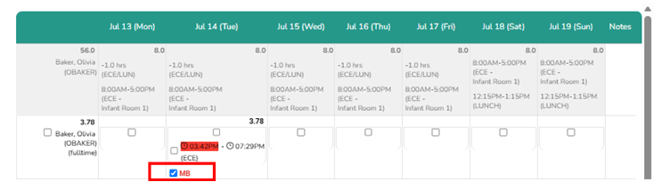
Meal Break (MB)
If an employee selected “no” to “Meal and rest periods were provided in accordance with Learning Jungle policy and state law ”, a notification will appear on the employee's timesheet labeled “MB” (Meal/Break).
- Review timesheet entry/entries with “MB” notification(s) and select entry requiring editing:
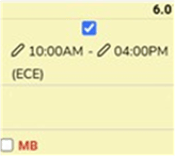
- Enter one (1) hour of Meal Break Premium for each qualifying meal period or rest period violation. Employees may receive a maximum of two (2) premium hours per workday, consisting of one (1) hour for meal period violations and one (1) hour for rest period violations. Then select "Add Benefit":

- To submit correction, check the MB checkbox for each flagged entry you want to correct.
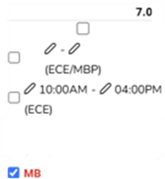
- Click the Submit Kiosk Corrections button. The button color will darken once selections are made.

- IMPORTANT: If a Center Director determines a Meal Break Premium is not required, they should add a note with the reason and proceed to checking the box next to the “MB” notification and submitting kiosk corrections:

- Once the correction is verified, the red MB flag is removed from the entry, and the Submit Kiosk Corrections button returns to its lighter color:

Punch Accuracy (PA):
If an employee selected “no” to “I accept the recorded clock-in and clock-out times”, a notification will appear on the employee's timesheet labeled “PA” (Punch Accuracy).
To resolve, the Center Director will need to review the Punch Claim Form submitted by the employee to review any adjustments and/or corrections needed on the time record. If a Punch Claim Form was not submitted, the Center Director will need to require the employee to complete the form to ensure proper documentation. If the employee informs the Center Director they selected “no” in error, the employee should complete the Punch Claim Form completely with the reason: “selected “no” in error.”
If the Center Director determines an adjustment or edit is needed, they should enter the adjustment or edit into the employee’s timesheet on LJO, check the box next to the “PA” notification, submit kiosk corrections and remove the incorrect punches. See steps below:
- Review timesheet entry/entries with “PA” notification(s) and Select entry requiring editing.
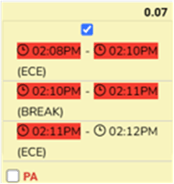
- Enter information consistent with the Punch Claim Form and select “Add Work”.

- Select the box next to “PA”
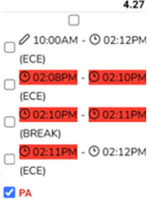
- Select “Submit Kiosk Corrections”

- Select the incorrect punch(es) and select “Remove”
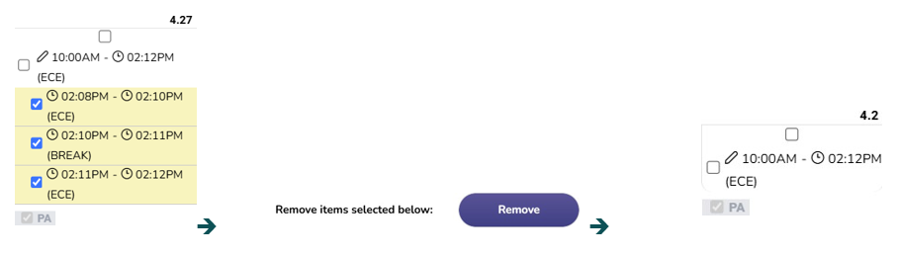
- Upon selecting “Submit Kiosk Corrections”, the notification will be considered resolved and a note will be generated indicating as such however, Center Directors must remove the incorrect punches as a final step. Timesheets cannot be verified by the Center Director until all “PA” notifications are resolved.
If a Center Director determines an adjustment or edit is not required, they should add a note with the reason and proceed to checking the box next to the “PA” notification and submitting kiosk corrections:

NOTE: If there are no more Kiosk Corrections to be submitted, the Submit Kiosk Corrections button changes to Verify timesheet button, allowing the User to verify a timesheet as usual
Add Work Hours manually from Kiosk Entries
- Select the date for the employee
- Choose the Start Time and End Time
- ensure employee has checked in and out using the kiosk app
- arrivals will be marked as (Work)
- a history of arrivals and departures for the selected day should show in the drop down
- if no available start / end time options that means that employee has no history of using the kiosk app for the day skip to the manual entry
- Choose the work hours type
- Choose the room if applicable or leave blank for Kitchen / Office employee
Select Add Work
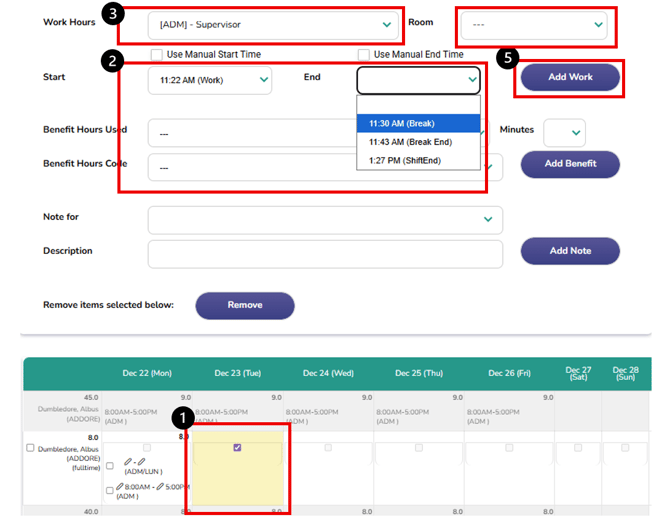
It should look something like this after you click ‘Add Work’:
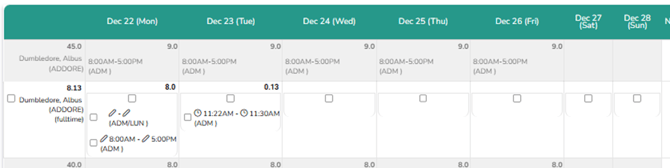
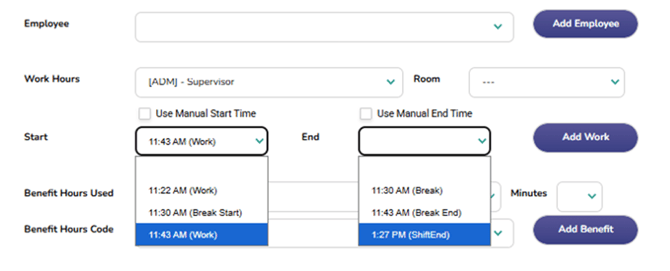
Continue adding the rest of their shift. If they went on break/lunch add the next start time when they finished their break. Below you will see that their break ended at 11:43 marked by (Break End). Therefore 11:43 that will be the next available start time marked with (Work).
After adding the rest of their shift, it will total up the hours above the employee name and the hours of that day at the top of the cell:
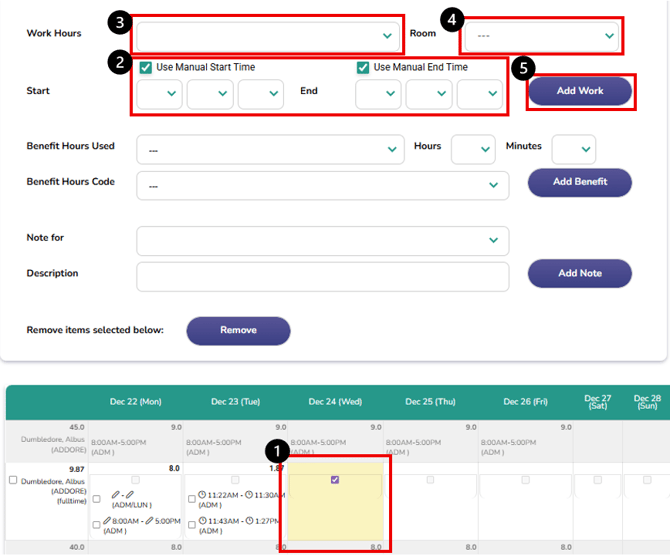
Add Work Hours from Manual Entry
- Select the date for the employee
- Select the Work Hours type
- Select the Room if not an office / kitchen employee
- Tick off Manual Start Time and Manual End Time checkbox
- You can use a combination of kiosk entry and manual entry by ticking off only one i.e. kiosk entry as a start time and manual entry for end time
Click ‘Add Work’
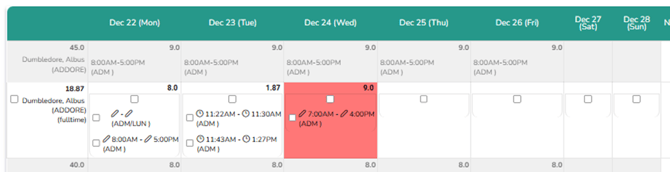
It should look like this after:
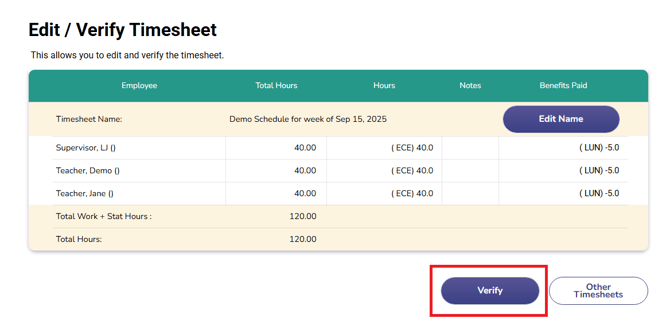
5. Verify and Submit
- Review all entries for accuracy.
- Once complete, click the Verify button to finalize the timesheet for approval.
Good to know:
- The clock icon represents a kiosk entry

- The pencil icon represents a manual entry

- Use notes to document any changes, corrections, or exceptions.
If correcting overpaid hours, confirm the “Week Of” field matches the timesheet