![iblum_Icon_RGB.png]](https://help.iblum.co/hs-fs/hubfs/iblum_Icon_RGB.png?height=40&name=iblum_Icon_RGB.png)
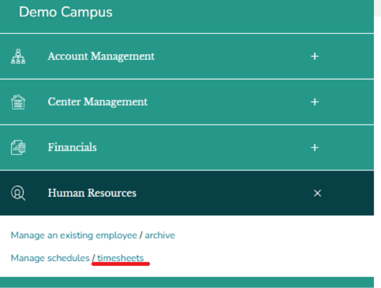
1. Navigate to the Timesheet Management Page
- Log in to the LJ Portal.
- Click the hamburger menu (☰) to open the Human Resources menu.
- Select timesheets. You will be navigated to the Timesheets page.
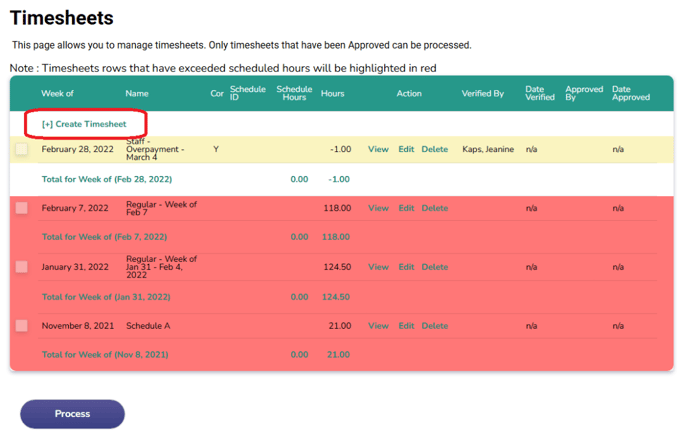
2. Create a New Timesheet
- Click on [+] Create Timesheet link. You will be navigated to the Create Timesheet form.
3. Fill in Timesheet Details
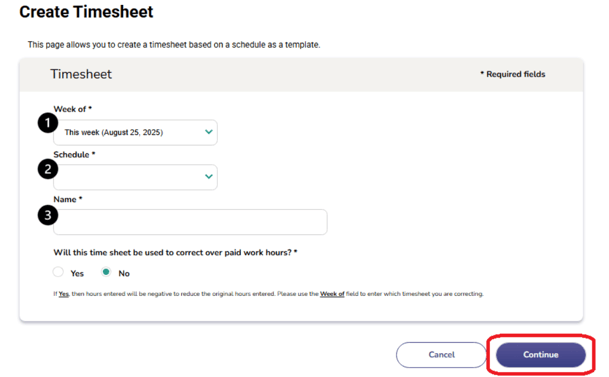
Complete the required information:- Week Of* – Select the week the timesheet applies to.
- Schedule* – Choose the schedule that will serve as the template for this timesheet. If a schedule is not available, a Supervisor cannot create a timesheet. Only a Director has the ability to create a timesheet in this scenario.
- Name* – Enter a name for the timesheet.
- Correct Overpaid Hours – Select Yes or No.
- If set to Yes, the hours entered will be recorded as negative values to reduce overpaid hours.
- If set to No (default), the timesheet will record regular hours.
- Click Continue to proceed.
4. Edit/Verify Timesheet
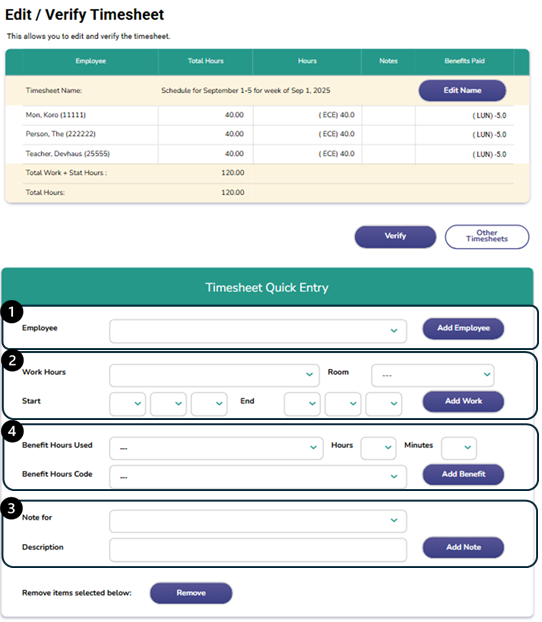
You will be navigated to the Edit/Verify Timesheet page. Here you can add:
- Employees
- Work hours
- Benefit hours
- Notes
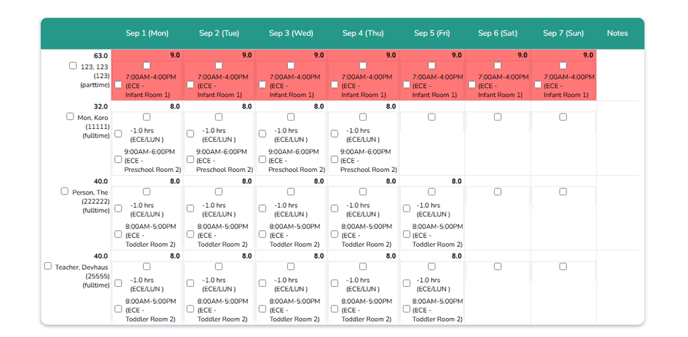
Any work hours added that exceed hours in the schedule used will be highlighted red as shown here:
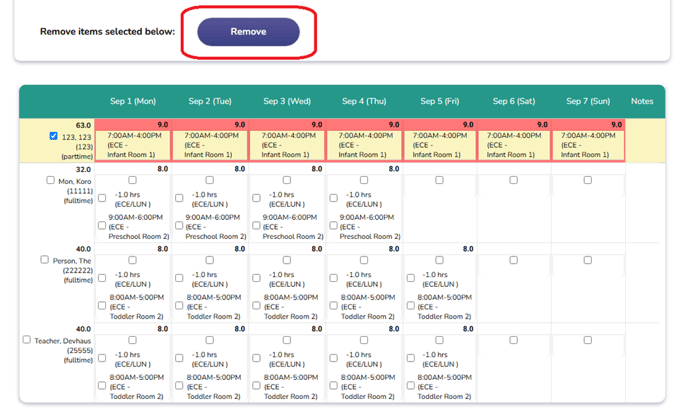
You can remove any item as well. Just check off the box of the item and select remove. Although unlike a schedule, you cannot remove an employee, only their hours.
Before:
After: 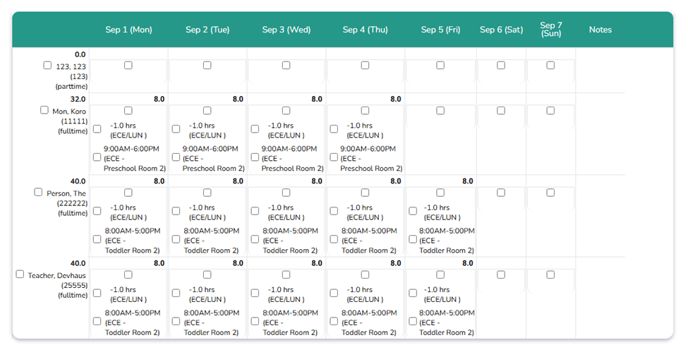
5. Verify and Submit
- Review all entries for accuracy.
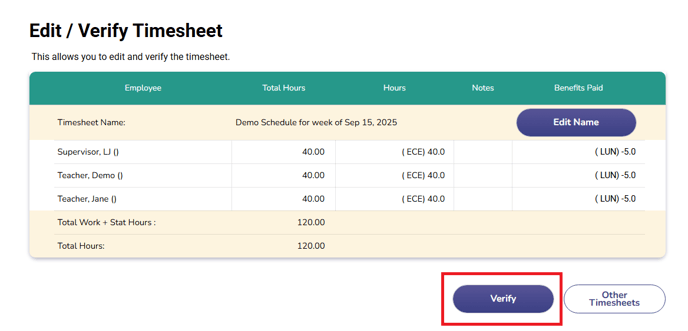
- Once complete, click the Verify button to finalize the timesheet for approval.
Important Notes:
- Double-check that you selected the correct week and schedule before verifying.
- Once a timesheet is verified no changes can be made.
- Ensure all employee hours are accurate to avoid payroll errors.