![iblum_Icon_RGB.png]](https://help.iblum.co/hs-fs/hubfs/iblum_Icon_RGB.png?height=40&name=iblum_Icon_RGB.png)
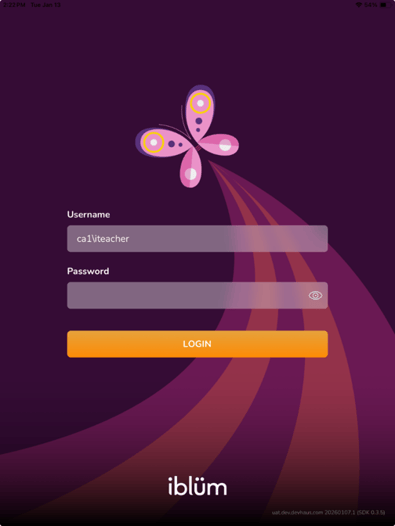
Step 1 : Login to your educator / teacher account on the app
Step 2:Choosing the classroom
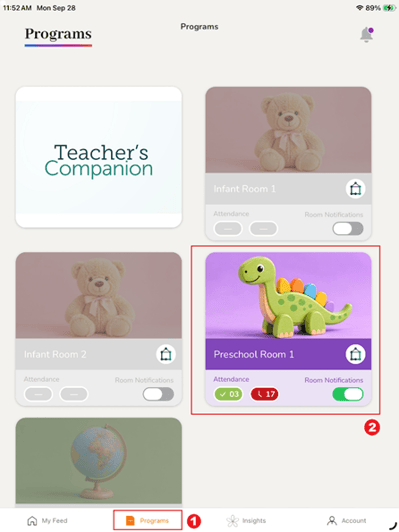
- Navigate on the Programs tab.
- Choose the classroom you are trying to access by clicking on the toggle button to switch on the classroom you are working in and select that classroom.
Step 3:Multiple Check In and Check Out
- CHECKING IN
One way to Check In is by clicking the button beside the child’s name.
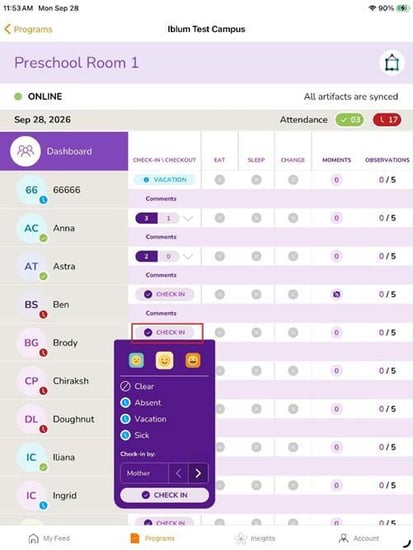
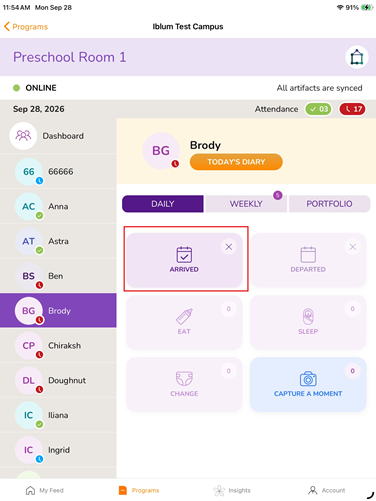
Another way to check-in is by selecting the name of the child. The child’s profile opens up. Select the Arrived box on the screen. A small window will open. Select if the child has – Arrived, Sick, Vacation, Absent.
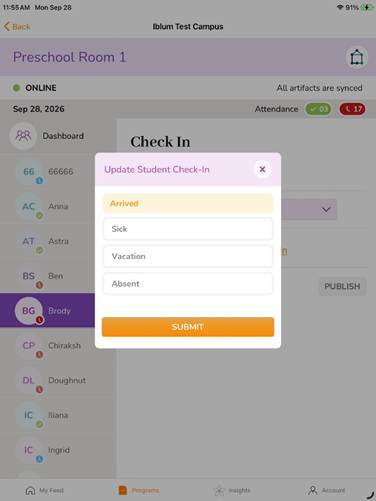
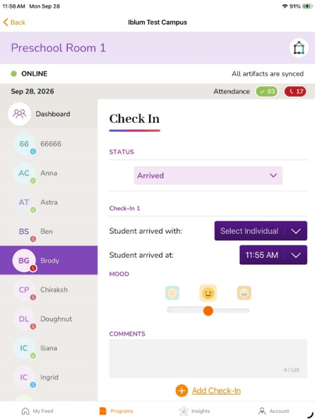
Selecting ARRIVED in the Status : You have the option to choose to enter who the child arrived with – Mother, Father, Guardian, Staff, or Someone else. Confirm also the time the child arrived in the center.
Click PUBLISH.
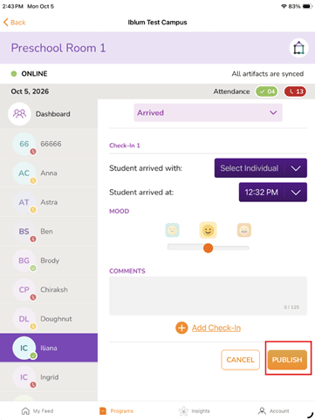
⚠️ Note: You can do multiple Check-Ins as long as the child was also Checked Out.
Click on the Add Check-In if the child is coming back to the center after being checked-out the first time.
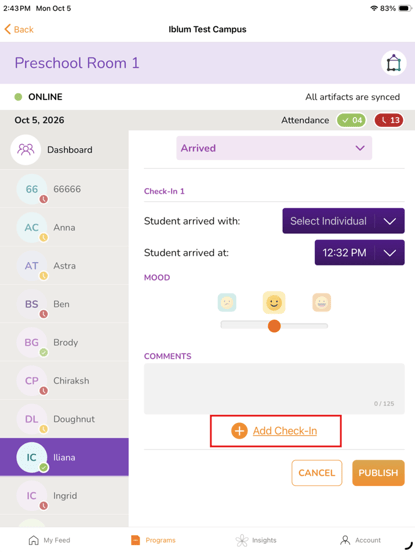
Same as the first Check-In, you have the option to select and choose who the student arrived with at the center. Select the time the student came back.
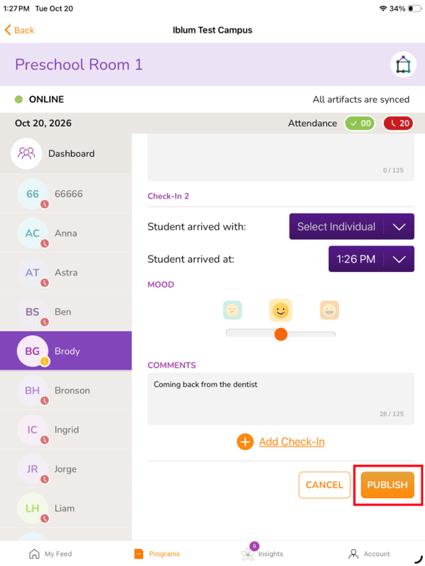
You can also write down on the Comments (i.e. Coming back from the dentist )
Click Publish.
- CHECKING OUT
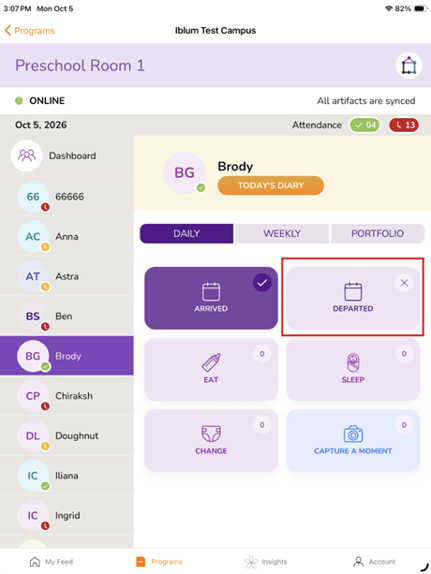
Select the student / child you want to check out. Select Departed.
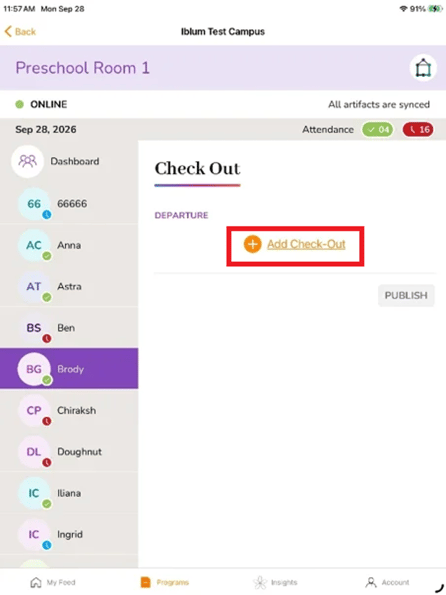
Click Add Check-out
Select on the dropdown list who is picking up the child. Select also the time the child departed.
1. Comments - You can type on the textbox ( i.e. Dentist appointment. Will be back )
Don’t forget to click Publish.
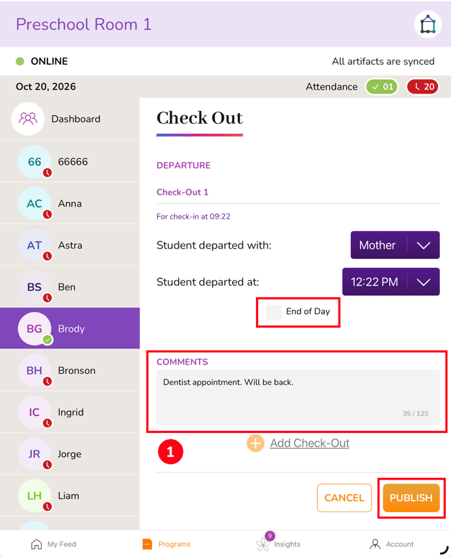
⚠️ Note: Select End of Day if the child is being picked up and will not be coming back for the rest of the day.
Select the Add Check-Out again if you need to Checked-In a child more than once.
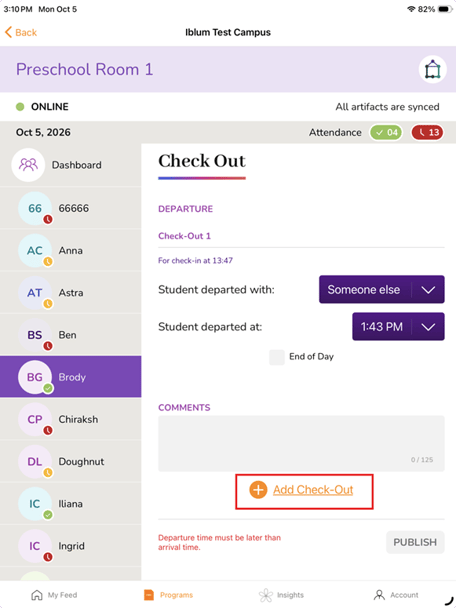
⚠️ Note: Don’t forget to Check-Out each time you Check-In a student.