![iblum_Icon_RGB.png]](https://help.iblum.co/hs-fs/hubfs/iblum_Icon_RGB.png?height=40&name=iblum_Icon_RGB.png)
⚠️IMPORTANT: This feature is only available to users with a Director level or higher. Supervisors cannot add employees; all additions must be approved by the Regional Director.
Step 1: Access the page
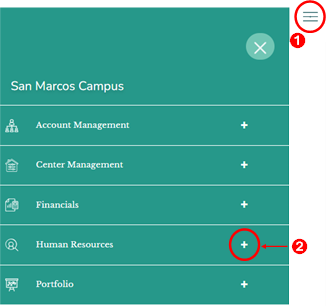
- First access the Human Resources section by clicking on the hamburger menu item. See image above
- Next click on the + button, to expand the Human Resources section.
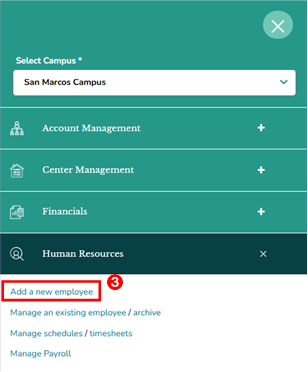
- Then click on “Add a new employee” link from the Human Resources section. Once you click on this link, you are taken to the Add New Employee page.
Step 2: Navigation

- Home Button (Top Left): Takes you back to the dashboard.
- Breadcrumb (San Marcos Campus > Add New Employee): Shows your current location in the portal.
Step 3: Page Sections and Field Details
All required fields marked with an asterisk (*) must be completed to proceed.
1. Educator: Enter all relevant personal and employment details of the new employee.
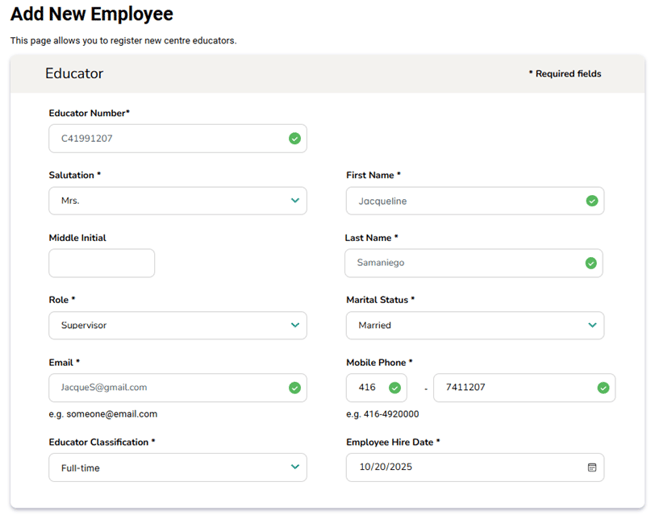
- Educator Number – Manually entered unique identifier.
- Salutation – Select from the dropdown list (e.g., Mr., Ms., Mrs.).
- First Name, Middle Initial, Last Name – Enter the educator’s legal name.
- Role – From the dropdown list, select the appropriate role for the educator: Supervisor or Teacher.

⚠️Note: The Supervisor role applies to individuals responsible for the management and supervision of staff members. The Teacher role applies to staff who do not hold supervisory responsibilities and are primarily involved in teaching and educational activities.
- Marital Status – Select the employee’s marital status from the dropdown list (e.g., Married, Single).
- Email – Enter a valid email address.
- Mobile Phone – Input a valid contact number.
- Educator Classification – Select the correct category from the dropdown list: Full-time, Part-time, External Staff Supply, Internal Staff Supply, or Shared User.
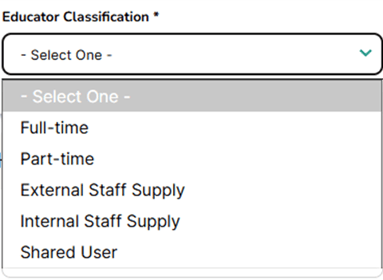
⚠️Note: The Shared User category is used only in specific cases. Select this option if the login needs access to all classrooms within the app.
- Employee Hire Date – Choose the hire date using the calendar picker.
2. Home Address: Provide complete home address information.
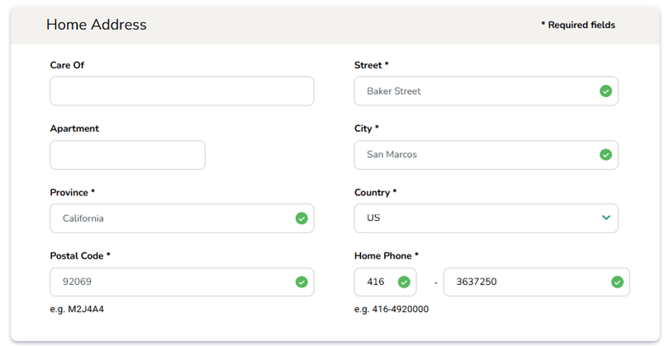
- Care Of – Optional; indicate if mail should be addressed to another person.
- Street, Apartment (Optional), City, Province – Enter the employee’s address details.
- Country – Choose the employee’s country of residence from the dropdown list.
- Postal Code – Enter the valid postal or ZIP code.
- Home Phone – Input the home phone number.
3, Employee Discount: If applicable, enter the Parent Account Number to link the employee to a parent account eligible for discounts. Entering an invalid account number results in an error. Either the account number entered is valid, or you may leave it blank. Furthermore, when you check the family account number, the system will display the employee discount information for that employee on the account detail page.
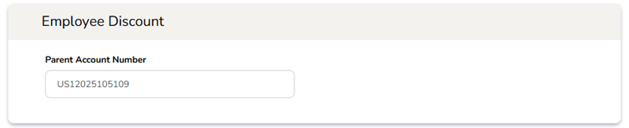
⚠️Note: This process adheres to the eligibility criteria and guidelines outlined in the Company policy on Childcare Services Discount.
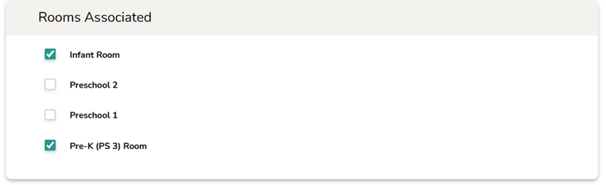
4. Rooms Associated: Select all applicable rooms or classrooms where the employee is assigned. You may select multiple rooms as needed (e.g., Infant Room, Pre-K (PS-3) Room).
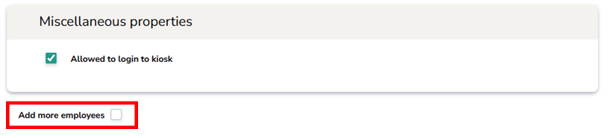
5. Miscellaneous Properties: Select the checkbox “Allowed to log in to kiosk” to grant kiosk access for clock in/out or attendance purposes.

6. Add More Employees: Check this option if you wish to add multiple employees consecutively without returning to the main page.
7. Action Buttons:

- Cancel – Click to discard the entered information and return to the previous page.
- Continue – Click to save the entered data and proceed to the next step of the registration process.