![iblum_Icon_RGB.png]](https://help.iblum.co/hs-fs/hubfs/iblum_Icon_RGB.png?height=40&name=iblum_Icon_RGB.png)
Step 1: Access the page
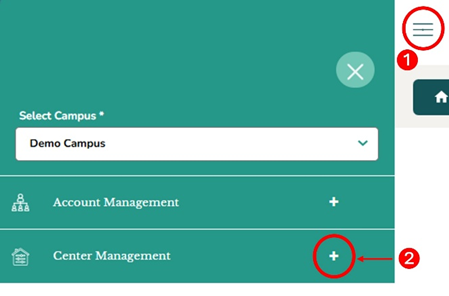
1. First access the Center Management section by clicking on the hamburger menu (☰) item. See image above.
2. Next click on the (+) button, to expand the Center Management section.
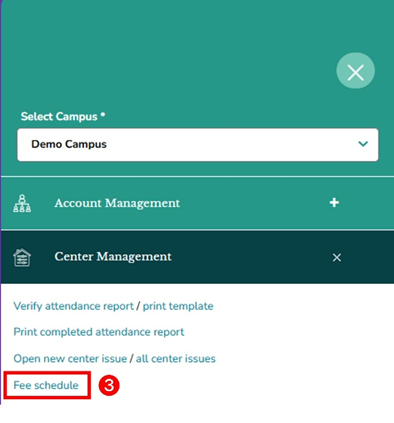
3. Then click on "Fee Schedule” link from the Center Management section. Once you click on this link, you are taken to the Fee Schedule page.
Step 2: Navigation

- Home Button (🏠- Top Left): Takes you back to the dashboard.
- Breadcrumb (Demo Campus > Fee Schedule): Shows your current location in the portal.
Step 3: Fee Schedule Overview
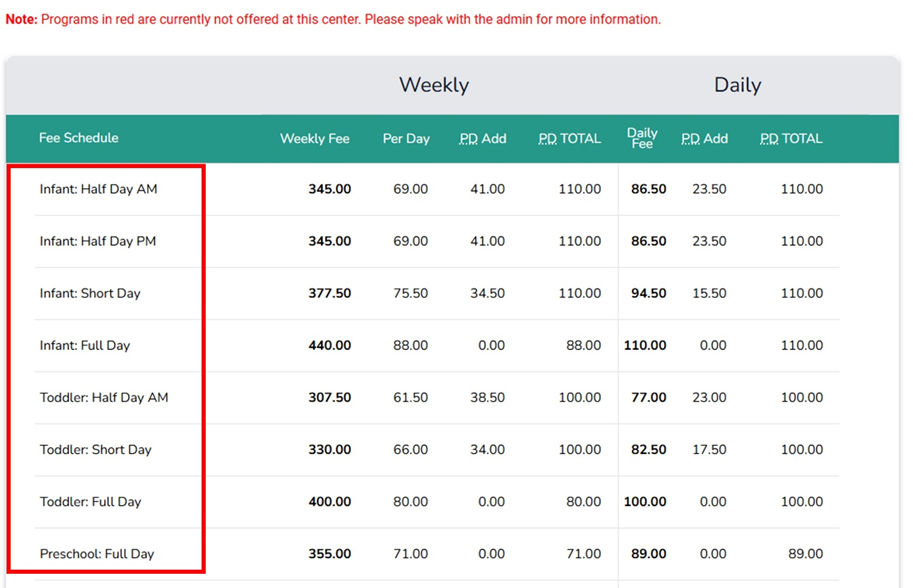
Program Types
- Displays the available childcare programs, organized by age group and attendance duration. Help parents select the program that fits their child’s schedule.
- If a program appears in red text, it is not currently offered at the center. Please check with the administrator to confirm availability.
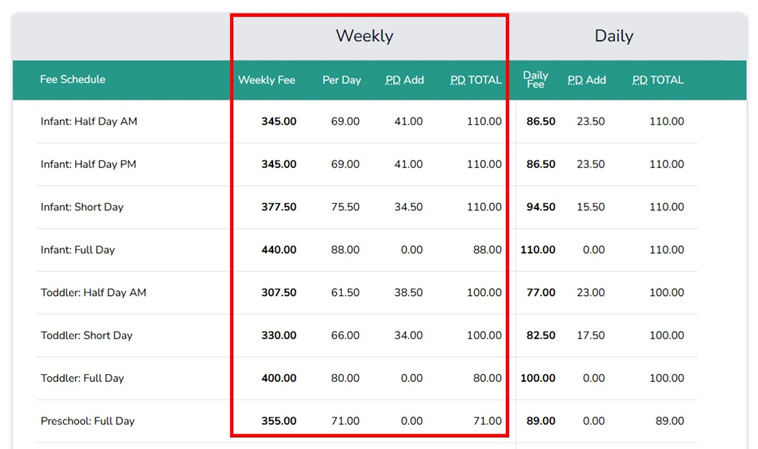
Weekly Column
- Weekly Fee – The total cost if a child attends the program for the entire week.
- Per Day – The cost of one day if calculated from the weekly rate.
- PD Add – Extra fee per day for added hours beyond the schedule.
- PD TOTAL – Combined per-day total (base fee + additional).
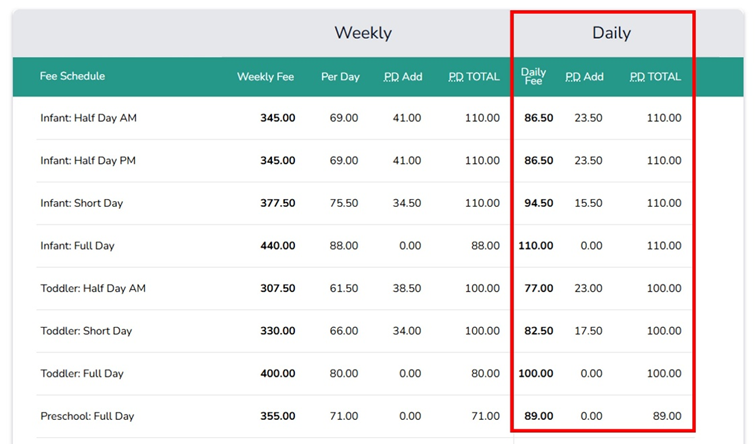
Daily Column
- Daily Fee – The cost if a parent chooses a day-to-day attendance option.
- PD Add – The additional cost added to the daily rate for extra hours.
- PD TOTAL – Combined per-day total (base fee + additional).
Discounts and Additional Charges
The lower part of the page contains important details beyond the standard program fees. This section outlines recurring discounts and charges, financial policies, and deposit requirements that may apply to families.
- Discounts may be percentage-based or fixed amount.
- Some discounts have limits or conditions noted in the description.
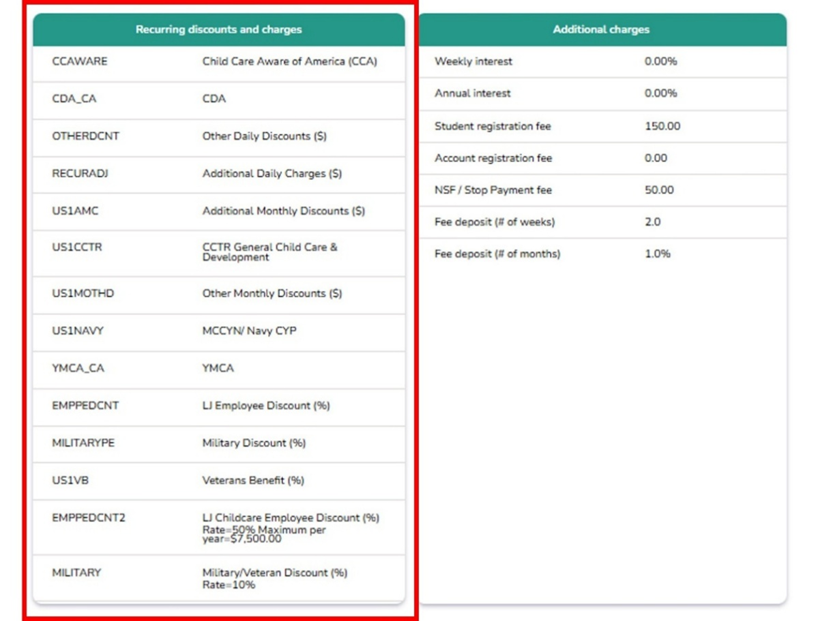
Recurring Discounts and Charges
- Discounts are applied according to defined criteria, which may include the family’s status, eligibility under specific funding programs, or the geographic location where services are provided.
- Charges may be applied if special services or circumstances require extra billing.
👉 Examples:
- A family supported through YMCA funding would have the YMCA_CA discount applied.
- A child enrolled under the CCTR General Child Care & Development program would use the US1CCTR code.
- If an account requires a special recurring fee adjustment, staff may apply RECURADJ.
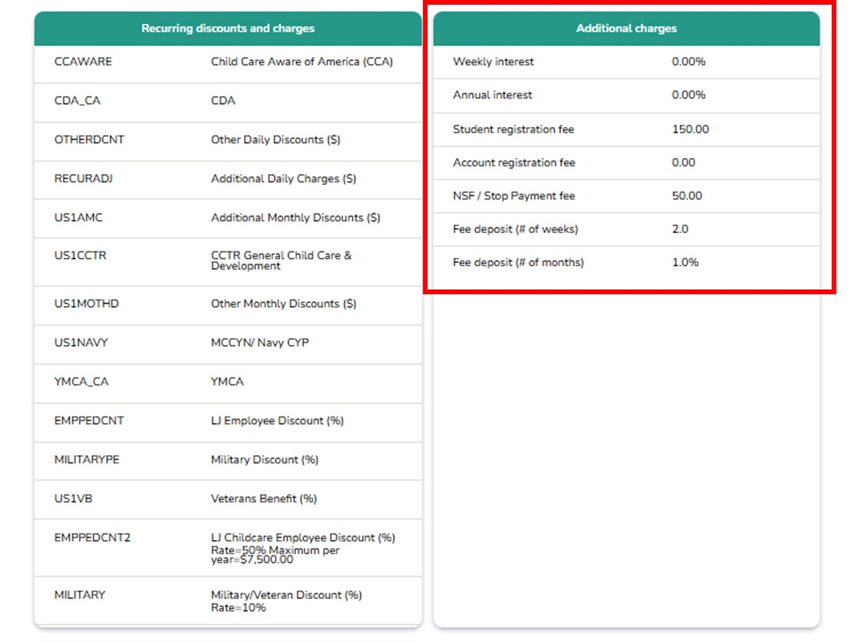
Additional Charges
These fields represent one-time or conditional charges that may apply during enrollment or while maintaining an account.
- Weekly / Annual Interest – Extra charges that may apply if a balance is overdue.
- Student Registration Fee – A one-time fee per student for enrollment.
- Account Registration Fee – Fee for creating/maintaining an account.
- NSF / Stop Payment Fee – A penalty fee for returned checks or stopped payments.
- Fee Deposit (# of weeks) – A prepayment equal to 2 weeks, collected in advance.
- Fee Deposit (# of months) – A prepayment expressed as a percentage of monthly tuition.
👉 Example:
- A new family enrolling two children would pay 2 × $150 registration fees, plus a 2-week deposit that will be applied toward future tuition.
- If a payment bounces, an additional $50 NSF fee would be added.

Contracts Section
Located at the bottom of the page. This area is reserved for viewing or managing active contracts related to enrollment and billing.
✅ Note: Always confirm fees with the admin team before finalizing enrollment, as subsidies or discounts may affect the total cost.
Step 4: Confirm and Exit

After reviewing the fee schedule, click OK (bottom-right corner) to confirm and return to the main menu.