![iblum_Icon_RGB.png]](https://help.iblum.co/hs-fs/hubfs/iblum_Icon_RGB.png?height=40&name=iblum_Icon_RGB.png)
⚠️ IMPORTANT: The features discussed below belong to the Supervisor or Director level access.
Step 1: Access the page
There are two ways to access Settings:
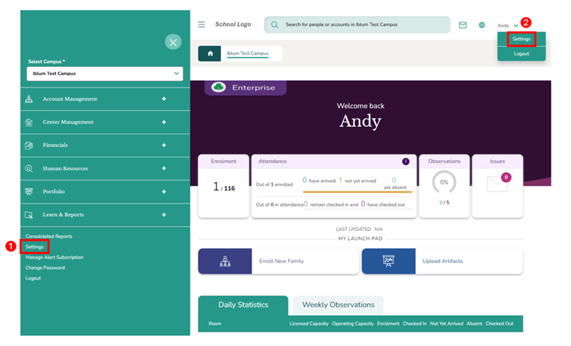
- To access Settings page, click on the hamburger menu and then select Settings.
- Another way to access Settings is to click your profile name in the top-right corner, then select Settings (located above Logout).
Step 2: Navigation

- Home Button (Top Left): Takes you back to the dashboard.
- Breadcrumb (Iblum Test Campus > Settings): Shows your current location in the portal.
Step 3: Settings page – Overview
The page is divided into three main areas: My Profile, Alerts, and Portfolio.
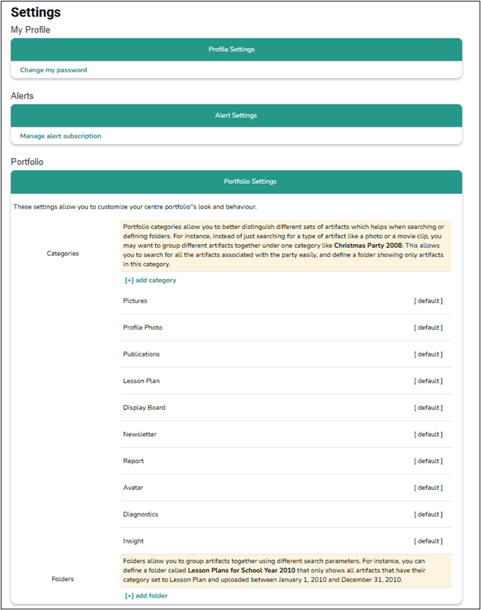
My Profile - This section allows you to manage your personal account information including changing your password.
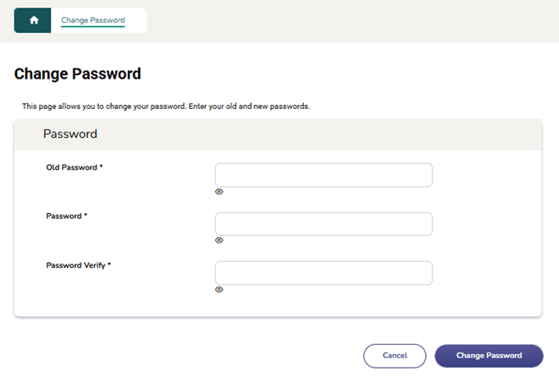
To change your password, click Change my password.

In the Change Password page, you need to enter your old password and new password. Click Change Password to apply the changes or Cancel to return to Settings page without performing any action.
Alerts - This page allows you to subscribe to specific alerts that you can get notification on.
To access, click Manage alert subscription.

You can choose to forward the alert to an email account.
⚠️ Note: Please use the center email address or your work e-mail address, avoid using your personal email account.
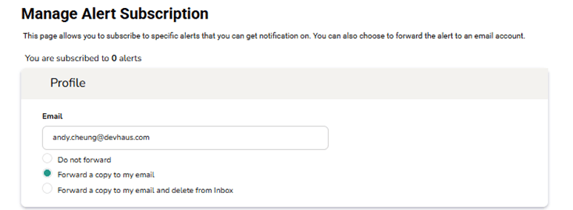
Select or update your preferred alert options as needed.
⚠️ Note: System is selected by default and cannot be removed from alerts.
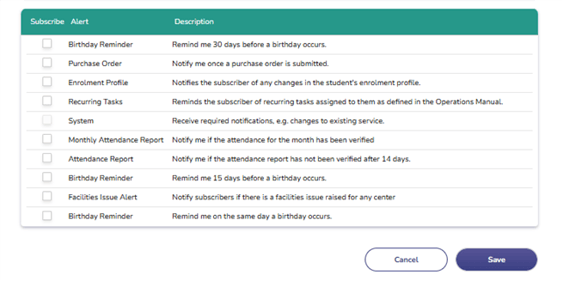
Click Save to apply the changes or Cancel to return to Settings page without performing any action.
Inbox (Alert) Page – This page displays a list of notifications to which you are subscribed.
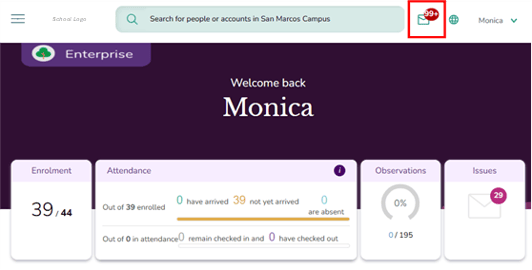
To access the Inbox, click the envelope icon [ ] located at the top-right corner of the dashboard, to the left of your profile name. A red notification badge on the icon indicates the number of unread alerts.
On this page, you can perform several actions: manage notifications, return to dashboard, and view notification details.
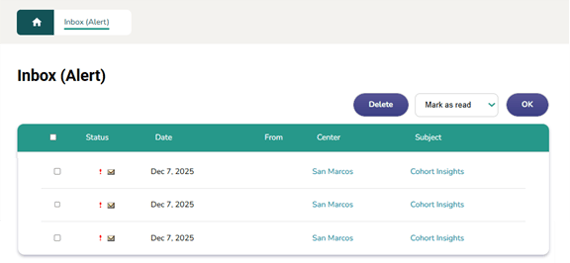
Manage notifications: Select all notifications or specific items, then choose to delete, mark as read or unread, flag for follow-up, or remove flag.
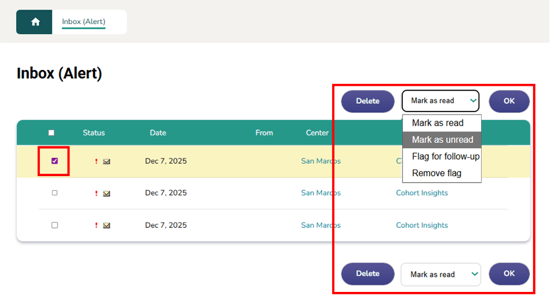
⚠️ Note: Action buttons are available at both the top and bottom of the table for convenience.
Return to dashboard: Click the center name to navigate back to the main dashboard.

View notification details: Click on an individual subject to open and view its details.

Portfolio - Portfolio settings allow you to customize the look and behaviour of your centre portfolio by organizing artifacts into categories and folders.
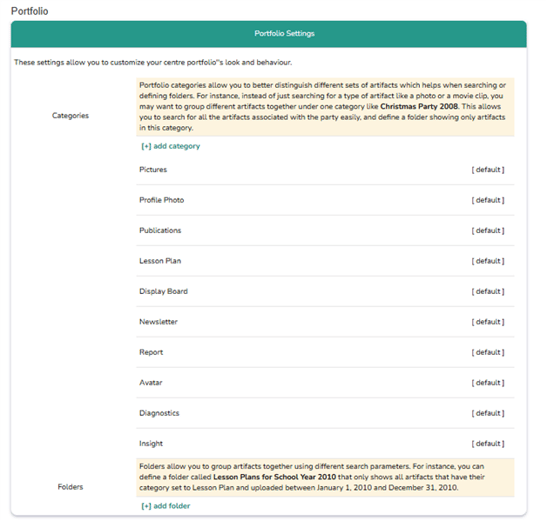
What are Categories? Categories help you group similar artifacts together, making them easier to search and manage.
👉 Example: You can group all artifacts related to a specific event (e.g., Christmas Party 2008) under one category.
The following categories are available by default:
- Pictures
- Profile Photo
- Publications
- Lesson Plan
- Display Board
- Newsletter
- Report
- Avatar
- Diagnostics
- Insight
⚠️ Note: Default categories are labeled as [default] and cannot be removed.
Add a new Category
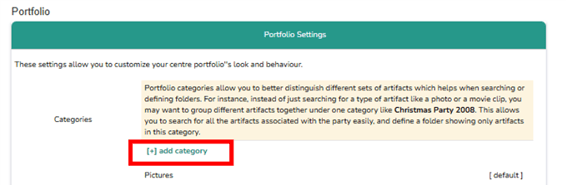
- Under Categories, click [+] add category.
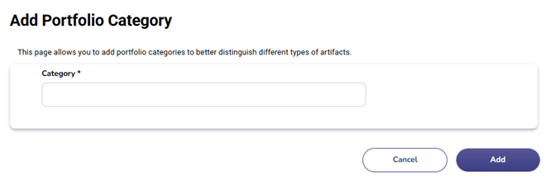
- Enter the Category name and click Add to include it to your portfolio.
What are Folders? Folders allow you to group artifacts using search parameters, such as category and date range.
👉 Example: You can define a folder called Lesson Plans for School Year 2010 that only shows all artifacts that have their category set to Lesson Plan and uploaded between January 1, 2010 and December 31, 2010.
Add a new Folder
⚠️ IMPORTANT: This feature is only available to users with a Director level or higher.
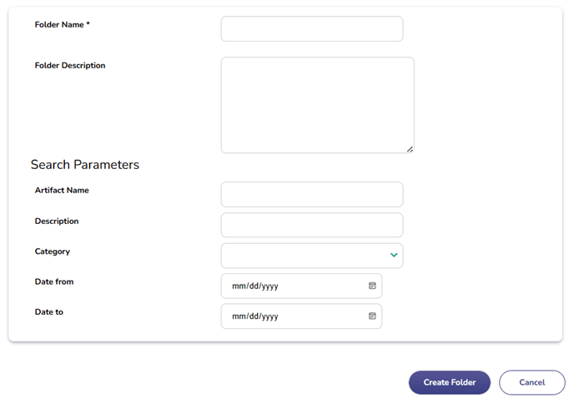
Scroll to the Folders section. Click [+] add folder.

- Define the folder details (e.g., name, description, and search parameters) – see image below. Click Create Folder to apply the changes or Cancel to return to Settings page without performing any action.
✅Tips:
- Use categories for broad grouping (by type of artifact).
- Use folders for more specific organization (by date, year, or purpose).
- Keep category names clear and consistent to improve search results.
For more information on how to manage center portfolio artifacts, please refer to the Manage Center Portfolio Artifacts user guide.