![iblum_Icon_RGB.png]](https://help.iblum.co/hs-fs/hubfs/iblum_Icon_RGB.png?height=40&name=iblum_Icon_RGB.png)
⚠️IMPORTANT: Directors and higher-level users can update employee records and disable accounts. Supervisors have view-only access to employee records and can reset passwords if needed.
Step 1: Access the page
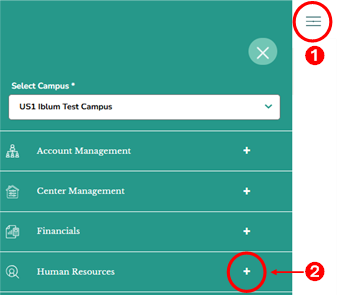
- First access the Human Resources section by clicking on the hamburger menu item. See image above
- Next click on the + button, to expand the Human Resources section.
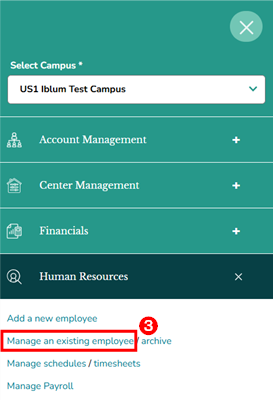
- Then click on “Manage an existing employee” link from the Human Resources section. Once you click on this link, you are taken to the Add New Employee page.
Step 2: Navigation

- Home Button (Top Left): Takes you back to the dashboard.
- Breadcrumb (US1 Iblum Test Campus > Employees): Shows your current location in the portal.
Step 3: Employees Page - Overview
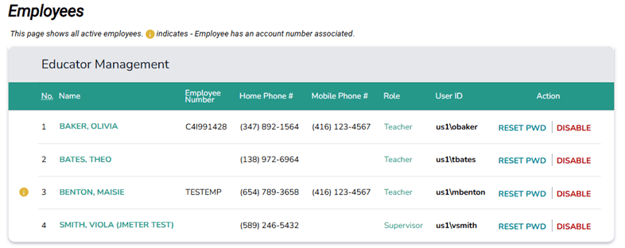
Account Indicator ( ) - Indicates the employee has an associated family account number. When present with a valid account number then the account associated with the employee becomes eligible for an employee discount. The account information is displayed when hovering over the indicator. As long as the employee is active, the account will receive an employee discount.
Employee List - Displays all active employees at the selected center. The list includes the following details:

- Name - The full name of the employee.
- Employee Number - A unique identifier assigned to each employee.
- Home Phone # / Mobile Phone # - Contact numbers for the employee.
- Role - The employee’s position (e.g., Teacher or Supervisor).
- User ID - The system login ID assigned to the employee.
- Action – Available functions based on user role: Reset Password (RESET PWD) and Disable (DISABLE).
Step 4: Action Options
This section outlines the available actions for managing the employee records.
A. Update Employee’s Information - Available only to Directors or higher-level users.
Click the name of the employee (image below) to open the Update Employee page.

The Update Employee page allows authorized users to update an employee’s information as needed:
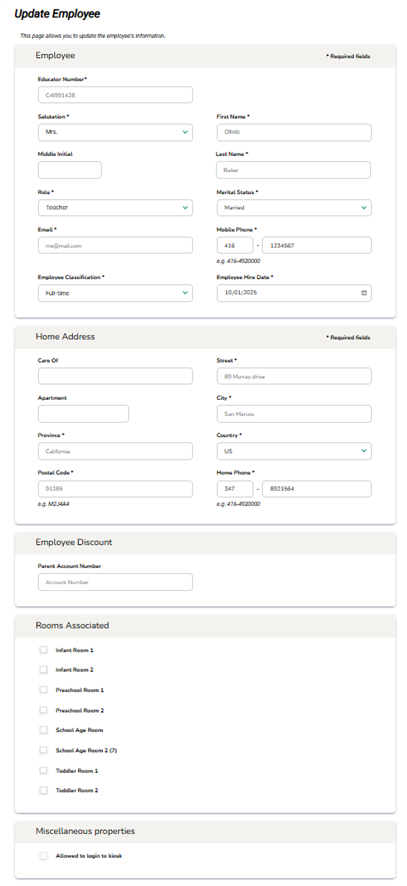
⚠️ Note: For a comprehensive overview of the sections and fields on this page, please refer to the How to add a new employee user guide.
Click Continue to save the entered data and return to the previous page. Click Cancel to discard the information entered.
B. Reset Password - Allows Supervisors and Directors to reset an employee’s password.

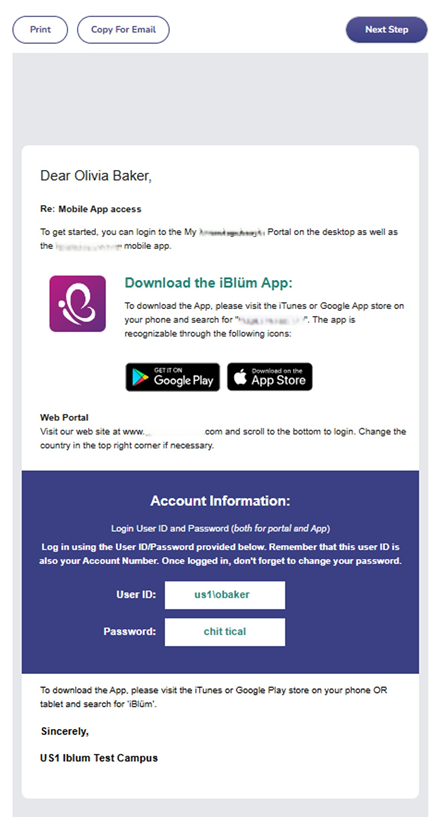
When you click Reset Password (RESET PWD – image above), the system redirects you to the Login Instructions page. From there, you may choose to Print or Copy to Email the login details. Click Next Step to return to the previous page.
C. Disable - Available only to Directors or higher-level users.

Click Disable (DISABLE – image above) to deactivate the employee’s record. Once deactivated, the record will be transferred to the Disabled Employees page.
⚠️Note: For a detailed walkthrough of the Disabled Employees page and the steps to reactivate an employee’s account, please refer to the How Do I Access and Reactivate an Employee from Archived Page? user guide.