![iblum_Icon_RGB.png]](https://help.iblum.co/hs-fs/hubfs/iblum_Icon_RGB.png?height=40&name=iblum_Icon_RGB.png)
How Do I View a Student’s Initial Assessment?
This guide is designed for educators to access and review a student’s initial assessment completed by their parent or guardian. Reviewing this information provides valuable insight into the student’s current development, skills, and individual needs, helping support more personalized learning and care.
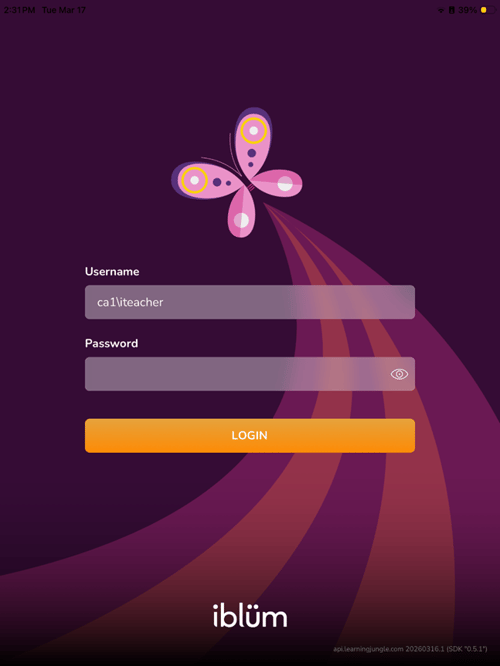
Step 1: Login with your parent credentials on the iBlum App
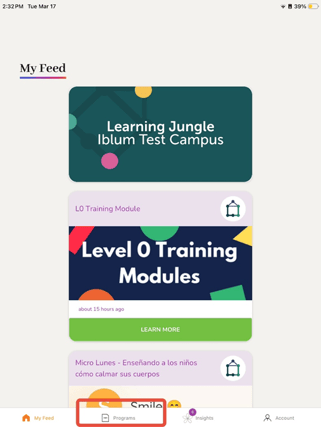
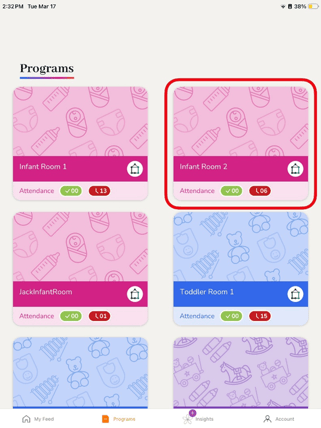
Step 2: Navigate to the Programs section and select the room student is in.
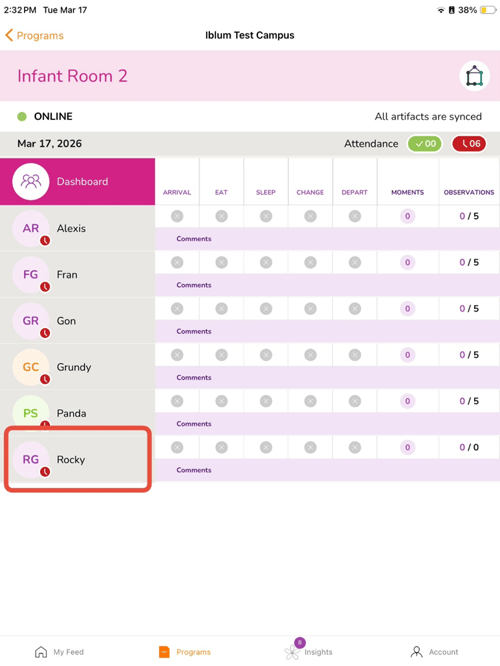
Step 3: Select Student Daily Forms.
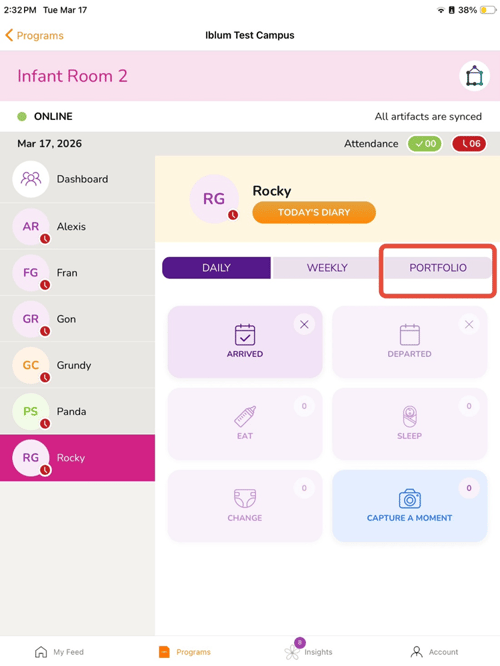
Step 4: Open the student's Portfolio.
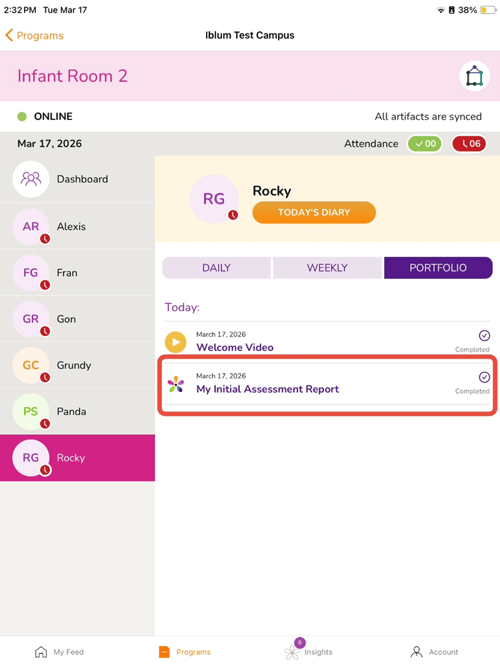
Step 5: Click on My Initial Assessment Report.
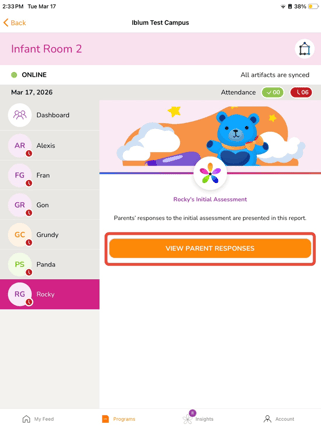
Step 6: Select View Parent Responses
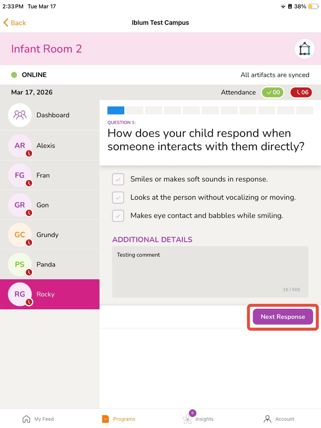
- View the responses and comments
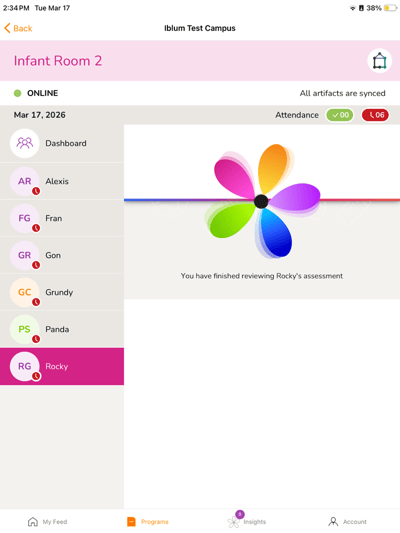
- Select Next Response to go to the next form until you have finished reviewing the report
Note: Initial assessments will only appear if they have been completed by the parent. Older assessments may require additional scrolling within the Portfolio to locate.