![iblum_Icon_RGB.png]](https://help.iblum.co/hs-fs/hubfs/iblum_Icon_RGB.png?height=40&name=iblum_Icon_RGB.png)
ARRIVAL
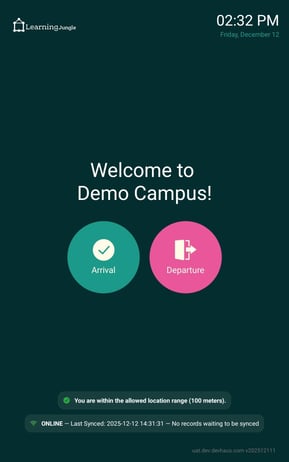
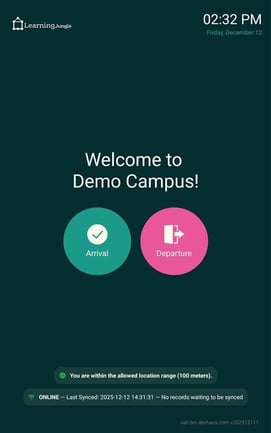
Step 1: Select Arrival
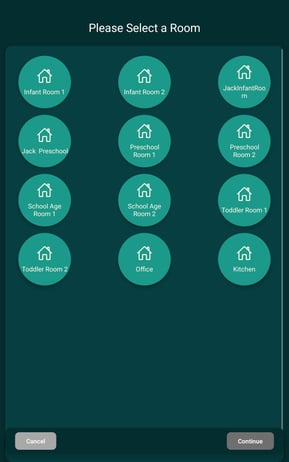
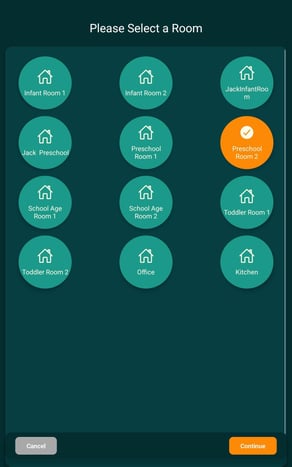
- On the supervisor device, select Arrival and then you will be asked to select the classroom you will be working in for the day. Hit continue after selecting
- In case internet connection is lost, you will still be able to use the app. View this section for more info on offline mode.
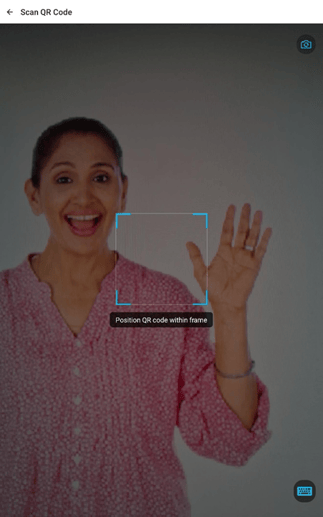
- On the bottom right of the screen click on the keyboard icon
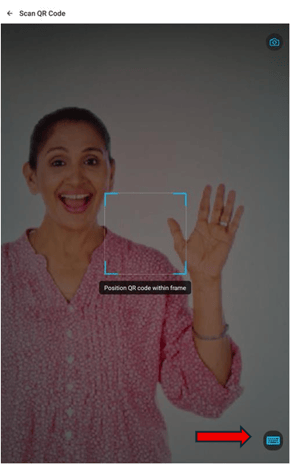
Step 2: Take Photo
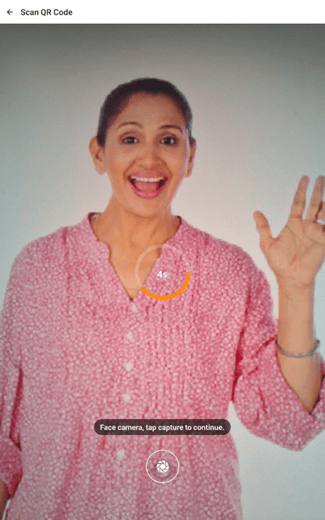
- On the supervisor device, press the shutter button to take your photo
- Ensure that your face is clear and inside the frame
- You will be navigated to verify your identity once a photo is captured
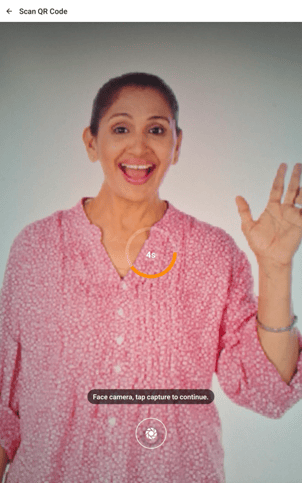
Step 3: Enter PIN
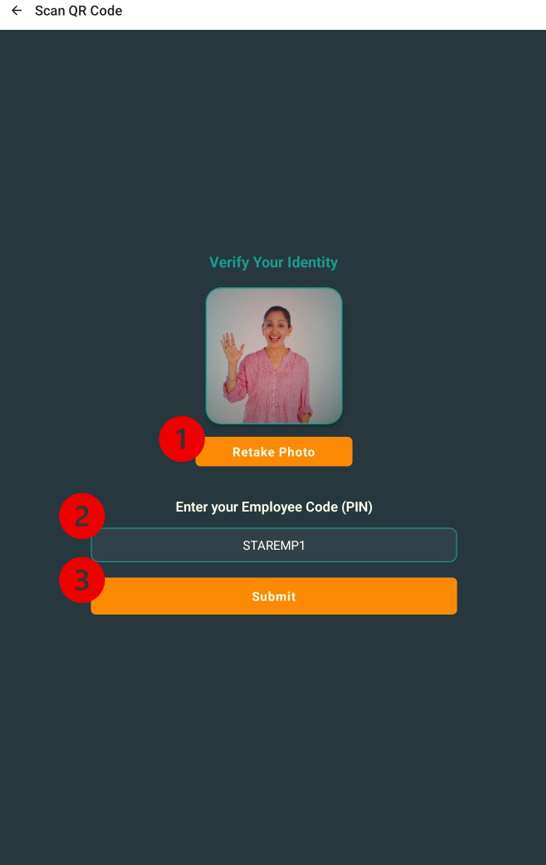
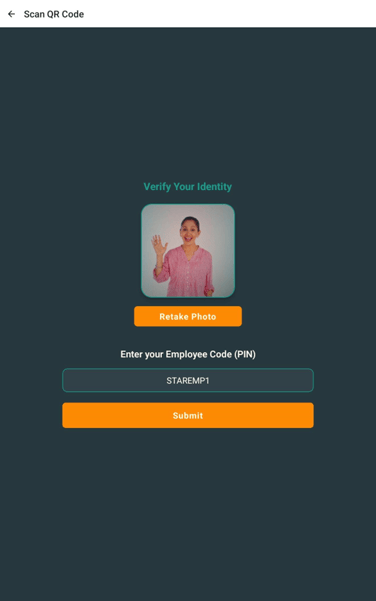
On this screen, you can do a few things:
- Retake your photo if it is unclear
- Enter your employee PIN code - this is required
- Submit
NOTE:
-
You have up to three attempts for putting the correct PIN with checking in/out
- An error message under the PIN field will show you how many attempts are left for you after putting an incorrect PIN number.
-
After three attempts of incorrect PIN, it will show an error page where you can navigate back to the homepage for arrival and departure
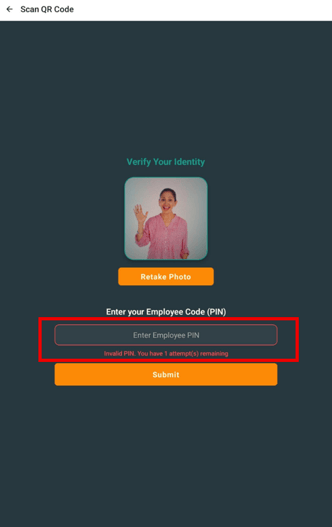
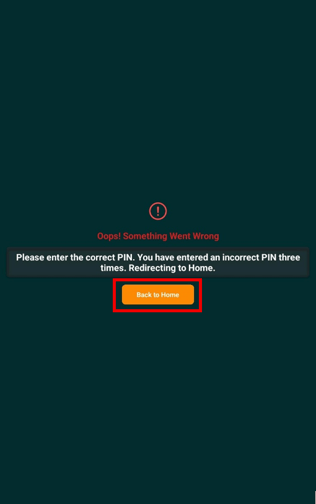
***Once redirected to Home page, you can try again with a different PIN or ask your director for your correct PIN number.
Step 4: Confirm Clock In
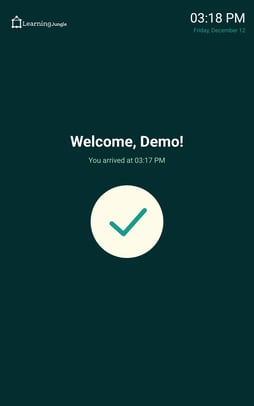
- Upon successful clock in with your employee PIN code you will be greeted by the app:
DEPARTURE
Follow the same steps as Arrival but instead, select departure.
Step 1: Select Departure
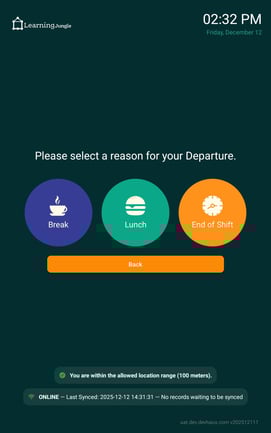
- Select departure and you will be navigated to the next page
- Choose the desired type of departure: Break, Lunch, or End of Shift
- On the next page hit the keyboard icon on the bottom right and fill in the fields
- Hit submit
Step 2: Take your picture ( optional )
This step is optional, if the kiosk app is not configured by the system to take a picture
- Take your photo by clicking on the shutter icon
-
Ensure your face is clear in the photo
Step 3: Enter PIN
-
Put in your PIN Code and hit submit
Step 4: Attest your arrival, rest, meal and departure times for the day
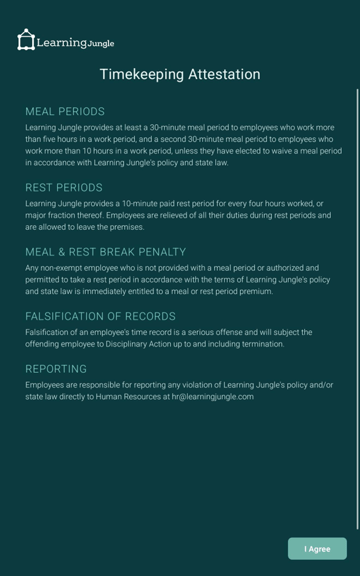
- Upon successful validation the following attestation screen is displayed. The screen
must be attested by the user that they agree to the terms and conditions stated in the screen. - Selecting I agree, states the user of the Kiosk agrees to the terms and conditions of timekeeping.
Step 5: Agreement or disagree with the Hours, Meal & Rest Periods.
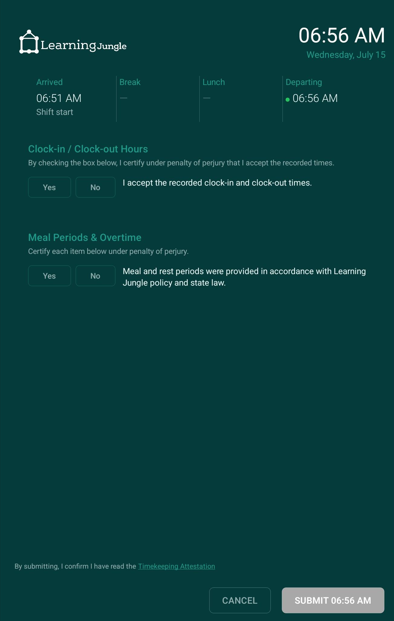
- Upon agreeing to the Terms of Attestation in Step 4, the user is led to the actual hours to approve and agree if hours of work were following certain rules, meal periods, rest period were appropriate and if overtime was approved
- The two items a user needs to agree are:
- Clock-in / Clock-out hours
- Yes / No – Agree / disagree to the recorded clock-in clock-out hours
- Hours, Meal and Rest Periods
- Yes / No – Agree / Disagree to the correctness of the meal and rest periods provided by the organization
- Clock-in / Clock-out hours
- Selecting the [Submit 6:56 AM] button confirms that their Shift End time is set at that time
Note:
- If you select “No” to “I accept the recorded clock-in and clock-out times,” you will need to complete a Punch Claim Form with your Center Director. The form should include the date and time of the missed or incorrect punch, the reason (e.g., forgot to clock in, system down), and both your signature and your Center Director's signature.
- If you select “No” to the meal and rest period question, your Center Director will review the circumstances and follow up with you directly.
- Selecting “No” by mistake? Let your Center Director know so it can be documented correctly on the Punch Claim Form.
The screen below shows the staff member agrees to the check-in check-out hours recorded, the Meal & Rest Periods being authorized and approved by the Director.
Step 6: Confirm Departure
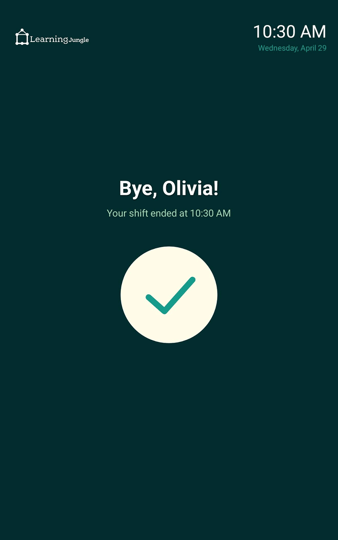
- If your departure is successful, the screen will change and greet you
- You are now clocked out
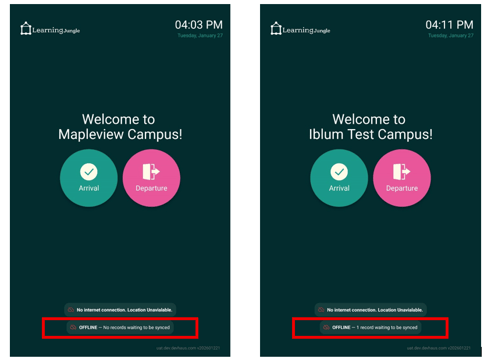
OFFLINE MODE
- If you lose internet connection, you can still use the Kiosk app to check in and checkout
- You will be able to tell that you are in offline mode if you see ‘OFFLINE’ at the bottom
- If you remain in offline mode and check-in/check-out you should see the # of records increment after your interaction
- Photo above on the left shows no records and photo on the right is after a check-in showing 1 record to be synced