![iblum_Icon_RGB.png]](https://help.iblum.co/hs-fs/hubfs/iblum_Icon_RGB.png?height=40&name=iblum_Icon_RGB.png)
⚠️IMPORTANT: Access to this feature is restricted to Directors and higher-level users to ensure proper management of employee records.
Step 1: Access the page
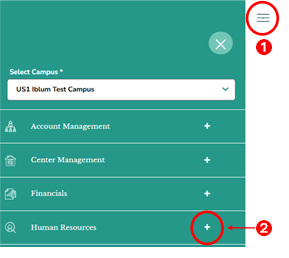
- First access the Human Resources section by clicking on the hamburger menu item. See image above
- Next click on the + button, to expand the Human Resources section.
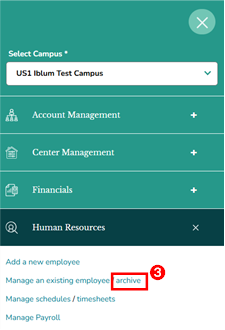
- Then click on “archive” link from the Human Resources section. Once you click on this link, you are taken to the Disabled Employees page.
Step 2: Navigation

- Home Button (Top Left): Takes you back to the dashboard.
- Breadcrumb (US1 Iblum Test Campus > Disabled Employees): Shows your current location in the portal.
Step 3: Disabled Employees Page

Account Indicator ( ) - Indicates the employee has an associated account number. Inactive employees do not receive any discount even though the information may be present. Upon re-activation of the employee, the discount will resume provided the employee still has a child enrolled in a program in the system.
View Employee Record
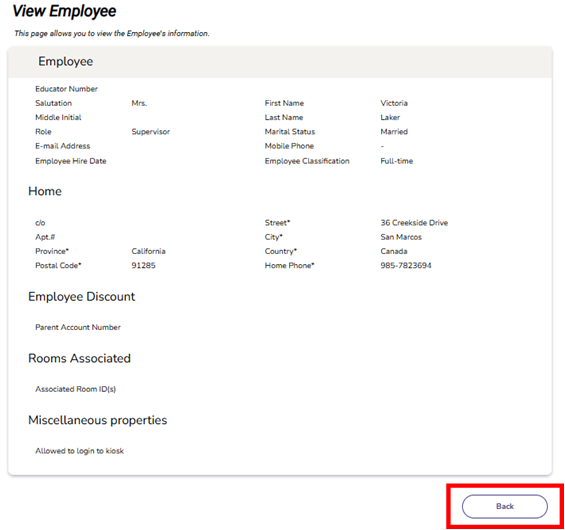
- From the Disabled Employees page, click the employee’s name (see image below) to review their details.

- After reviewing the details, click Back to return to the Disabled Employees page.
Reactivate an Employee Record
- From the Disabled Employees page, click REACTIVATE (see image below) to restore the employee’s access.

- Once reactivated, the record will return to the Employees (existing) page.
✅Tips:
- Access to disable or reactivate employee records is restricted to Directors and users with higher-level permissions.
- Always verify employee details before deactivating or reactivating a record to ensure accuracy.
- Reactivated employees regain access to the system; check that all necessary permissions are correctly assigned.