![iblum_Icon_RGB.png]](https://help.iblum.co/hs-fs/hubfs/iblum_Icon_RGB.png?height=40&name=iblum_Icon_RGB.png)
Step 1: Access the page
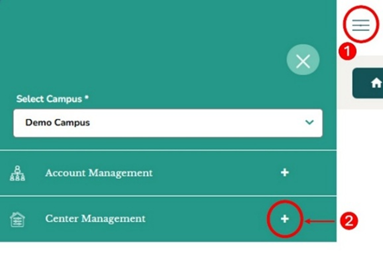
- First access the Center Management section by clicking on the hamburger menu (☰) item. See image above.
- Next click on the + button, to expand the Center Management section.
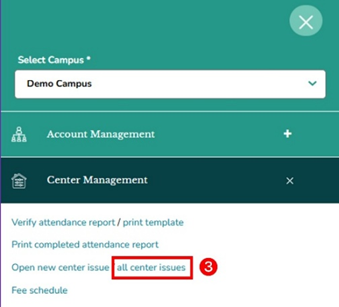
- Then click on “all center issues” link from the Center Management section. Once you click on this link, you are taken to the Center Issues page.
Step 2: Navigation

- Home Button (Top Left): Takes you back to the dashboard.
- Page Title: Center Issues – this is not clickable.
Step 3: Center Issues Page – Overview
The Center Issues page is designed to help track and manage issues reported at a specific location. It includes:
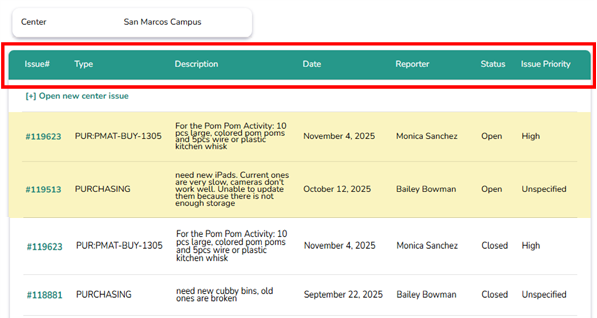
- A header displaying the Center name (e.g., San Marcos Campus). This is not clickable and reflects the center where you are currently logged in.

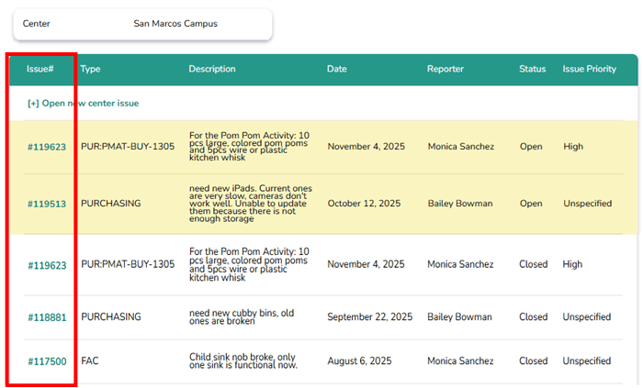
- A table listing all reported issues with details such as Issue#, Type, Description, Date, Reporter, Status, and Issue Priority.
- An option to create and submit new issues.
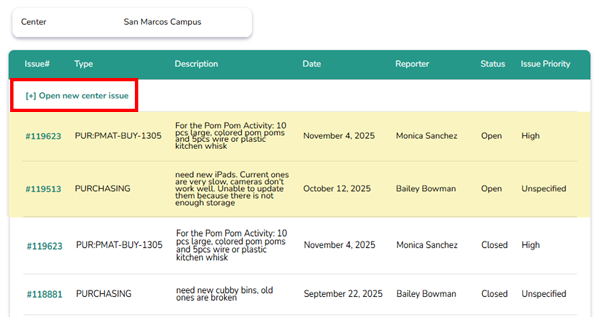
⚠️ Note: For detailed instructions on how to create and submit a new issue, please refer to the Open New Center Issue user guide.
Step 4: Managing Center Issues
Highlighted rows (yellow) indicate Open issues requiring follow-up, while non-highlighted
rows represent Closed issues that have been resolved.
-
- Locate the issue you want to view.
- Click the Issue# (e.g., #119623).
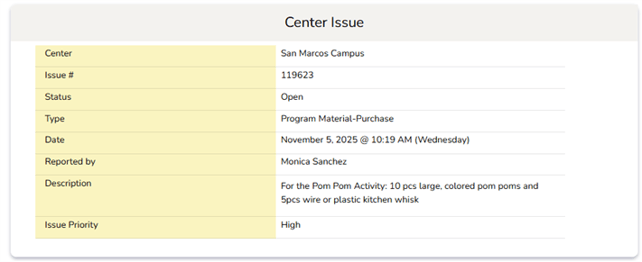
2. Center Issue Page Overview - The Center Issue page provides complete details of the selected issue, including Center name, Issue #, Status, Type, Date reported, Reporter’s name, Description of the issue, and Issue Priority.
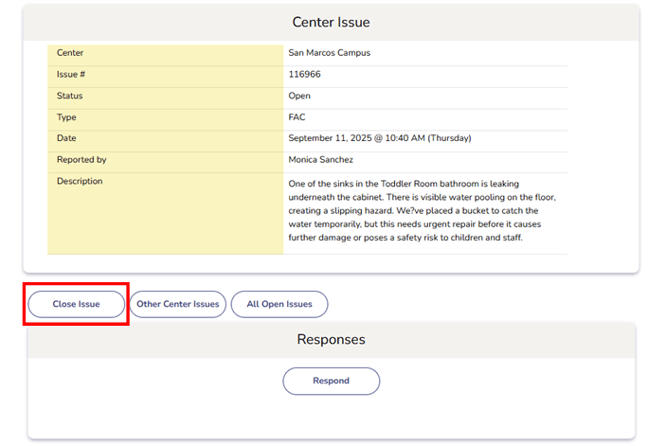
3. Action Buttons - Below the issue details.
- Use this button to mark an issue as resolved. Before closing, verify that the problem has been addressed.
- Add a note in the Responses box to explain the resolution.
b. Responses Section
The Responses box is used to document updates or resolutions:
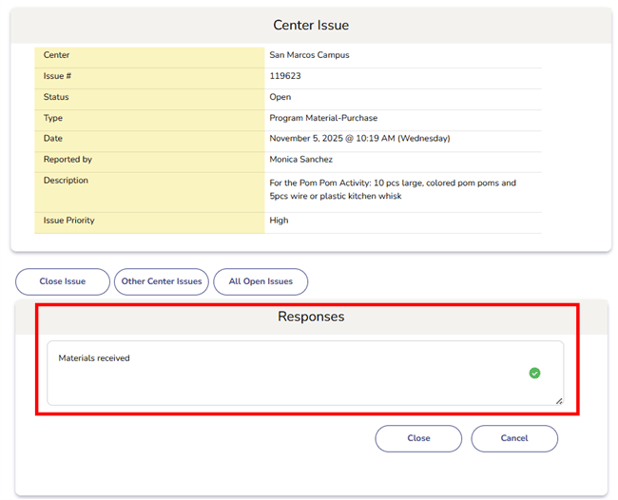
- Enter notes to track progress. When closing an issue, provide a final note explaining how it was resolved (e.g., “Materials Received”).
- Click Close to save or Cancel to exit without saving.
- All responses are saved as part of the issue history.
c. Other Center Issues
Displays the list of all issues reported at the same center. Use this to compare or check for related problems at your site.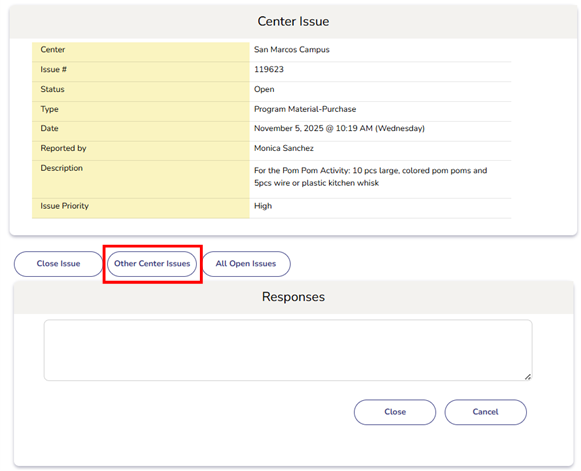
d. All Open Issues
Displays all unresolved issues at the center. Use this view to monitor pending problems and prioritize tasks.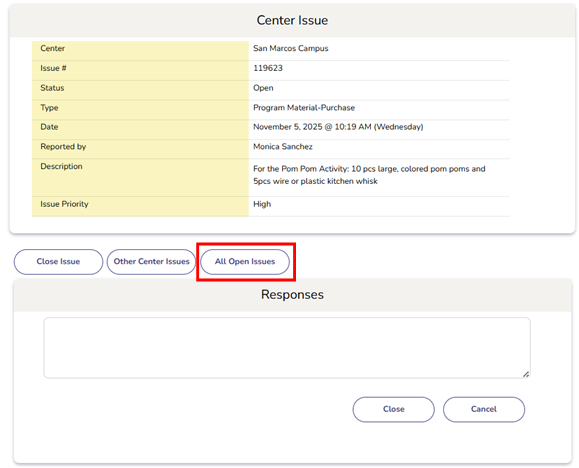
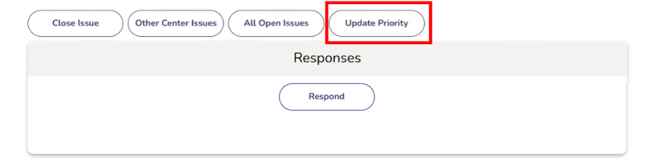
e. Update Priority
Regional Directors have access to an additional button that enables them to update the priority level of issues as needed. This feature ensures that urgent or high-impact issues are addressed promptly.
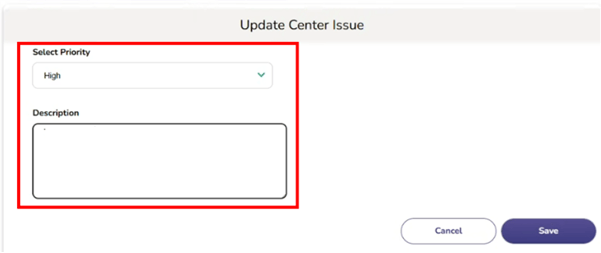
- Select the new priority level.
- Add a description or response (optional).
- Click Save to apply the changes or Cancel to exit without saving.
✅ Tip:
- Review existing issues before reporting a new one to avoid duplicates.
- Regularly review Open Issues to track pending tasks.
- Communicate with your manager if you’re unsure how to categorize or escalate an issue.