![iblum_Icon_RGB.png]](https://help.iblum.co/hs-fs/hubfs/iblum_Icon_RGB.png?height=40&name=iblum_Icon_RGB.png)
Step 1: Access the page
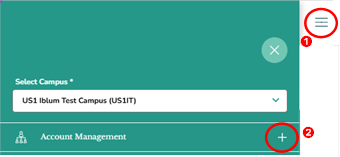
- Click the hamburger menu in the top-left corner of the portal.
- Confirm you are in the correct campus, then click + next to Account Management.
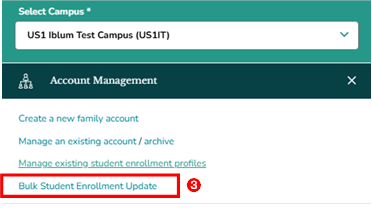
- Click Bulk Student Enrollment Update.
Step 2: Select students
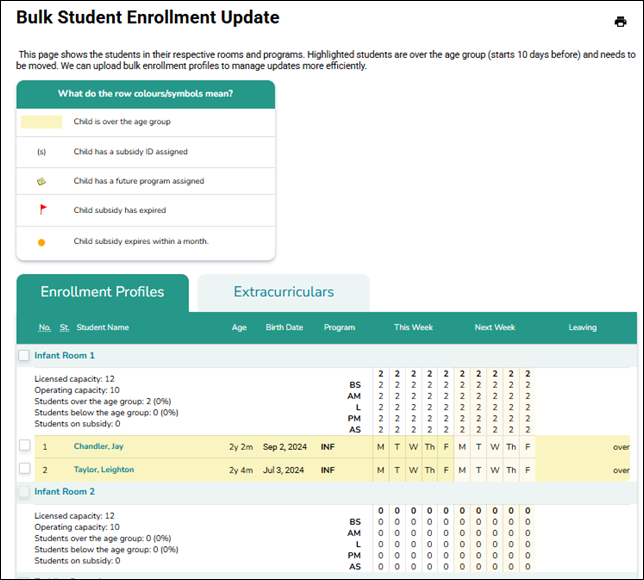
On the Enrollment Profiles tab, find the students in their current rooms. Use the Program, This Week, Next Week, and Leaving columns to check their current and upcoming enrollment.
- Student checkbox. Select individual students.
- Room checkbox. Use the checkbox next to the room name to select students in that room.
- Highlighted row. The student is approaching or past the room’s configured age limit. Highlighting starts 10 days before the cutoff.
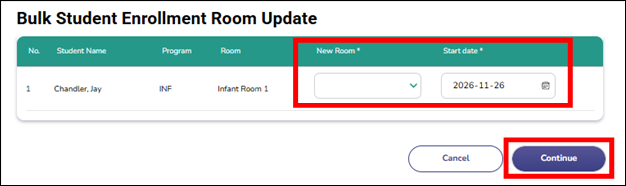
- Update Room. Click Update Room to open Bulk Student Enrollment Room Update.
- New Room and Start date. For each student, choose a destination from New Room and enter the effective Start date. Both fields are required.
- Continue. Review the room and date for every student before you click Continue. This button saves the room changes and returns you to the enrollment list.
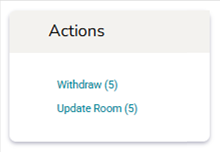
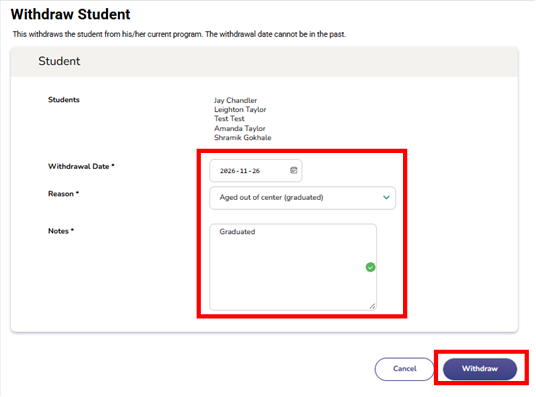
- Withdraw. Click Withdraw in the Actions area to open the Withdraw Student form.
- Withdrawal Date, Reason and Notes. Enter a date that is today or later, select a reason, and enter notes. Review the student or students listed before clicking Withdraw to submit.
Click Continue to review the selected students and see which actions are available.
Step 3: Choose an action
Review the selected students. The number in parentheses beside each action shows how many students the action applies to.
Update Room
Withdraw
A child with a future program assigned or a pending profile change is ineligible for withdrawal from this screen.
Use Cancel to exit either form before submitting a change.
Step 4: Verify the update
Return to the enrollment list and open the student’s enrollment profile. Verify the room and effective start date for a room update, or the recorded withdrawal date for a withdrawal.